Introduction
The English docs are primarily AI-translated from the Chinese originals. They should match the product behavior, but wording and nuance may still be off. If something reads unclear, incomplete, or wrong, please open an issue or PR on hunea-docs — Chinese remains the source of truth for now.
Hunea is a TUI agent tool built with Rust and Ratatui. I named it Hunea by blending human and easy. That is also the product vision: something that fits how people actually work and feels easy to use. A lot of the effort has gone into TUI design and interaction.
I want the same simple, approachable experience for professionals, learners, and people who just want AI help without learning a pile of commands. Beginners and power users should feel close to the same low friction — the gap from first open to long-term use should stay small.
Using Hunea
Go to Getting Started to learn how to work with Hunea.
Or go to Slow Start if you want to learn from the very beginning.
If you are curious about Hunea's origins and the ideas behind it, see Side notes.
Main features overview
The overall TUI design and style is heavily inspired by
Codex CLIwith some of my own ideas and principles blended in.
I really like
Codex CLI's clean, elegant TUI design.Thanks again to the OpenAI team's excellent design and to its contributors.
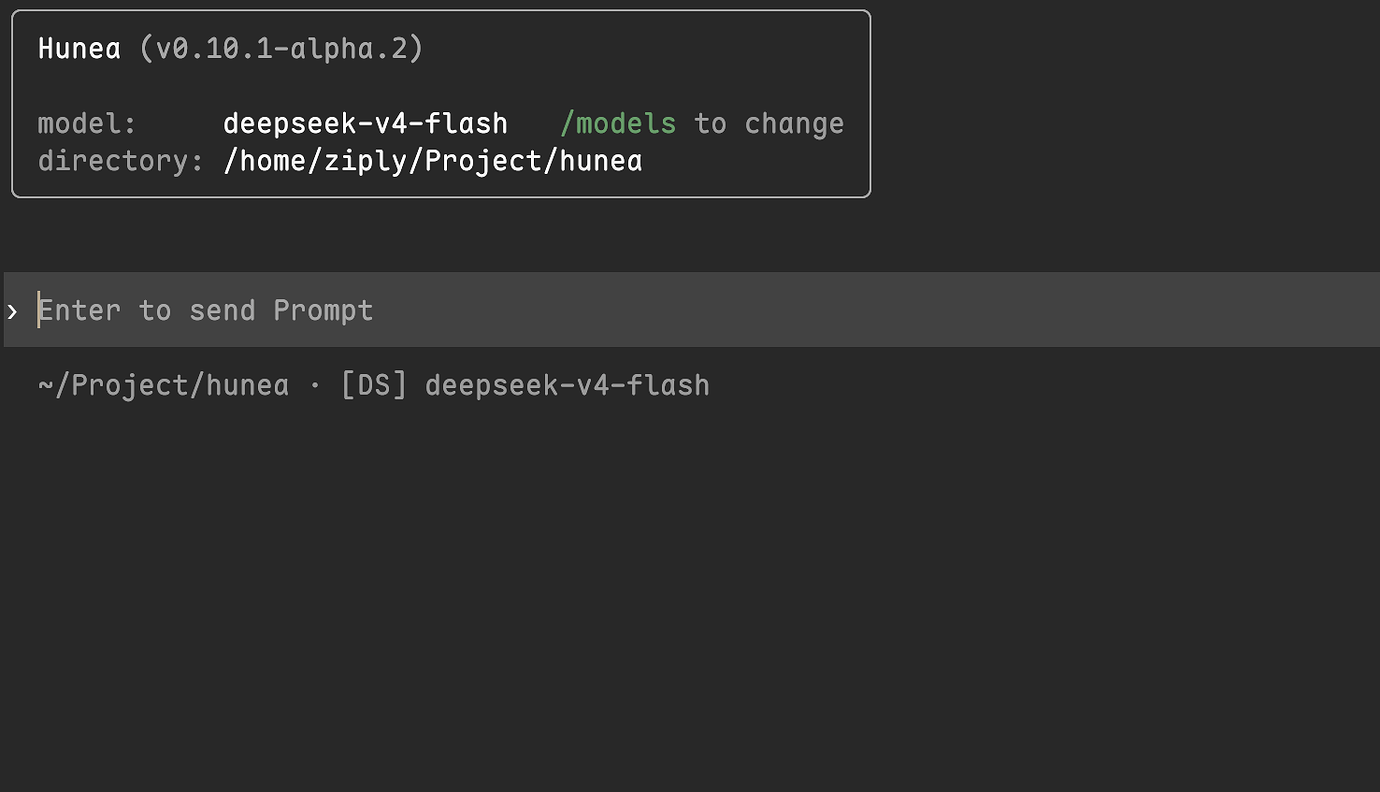
- A clean, simple UI with no extra prompts or status chrome — a conversation-first experience:
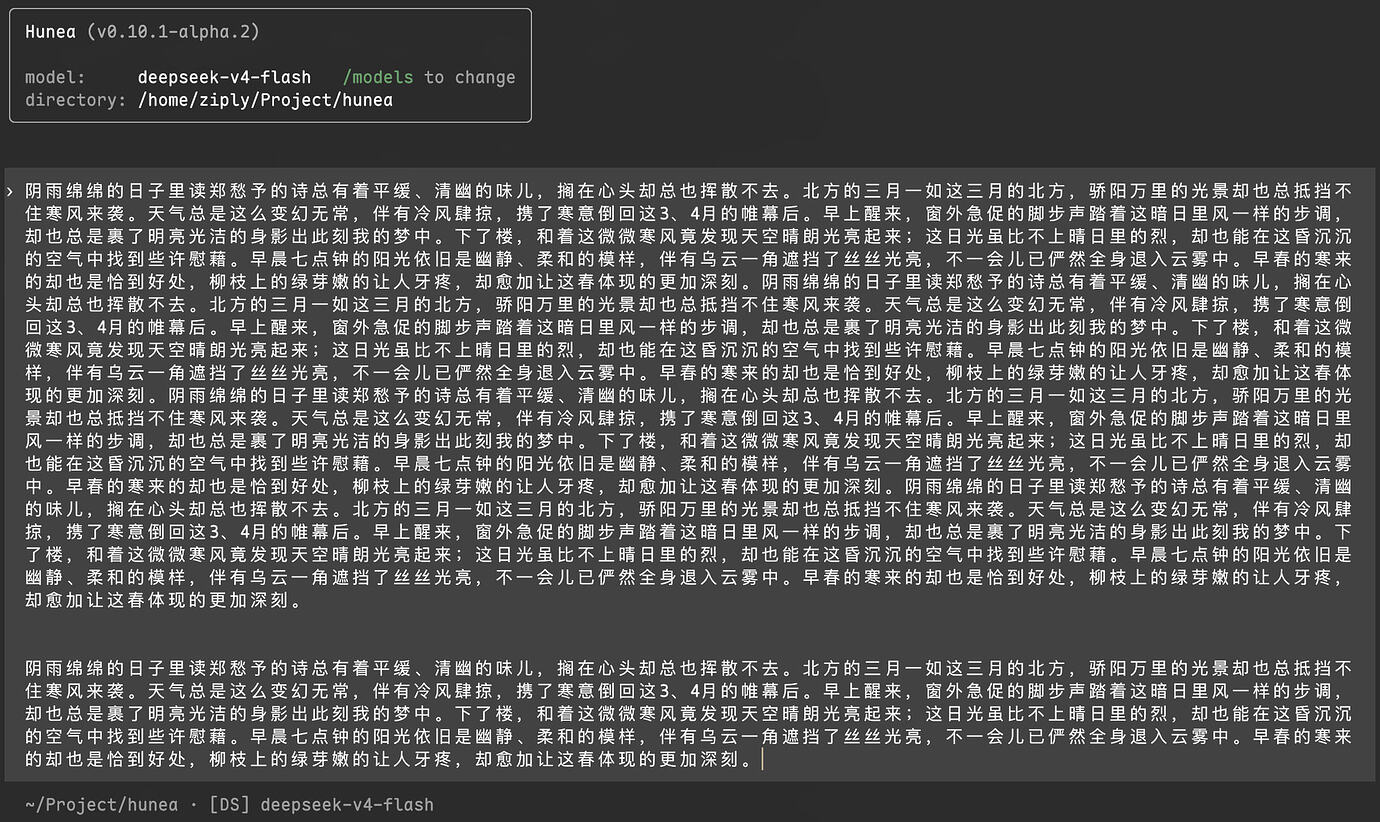
- A composer that fits how you type: click anywhere to move the cursor, long-press the left mouse button to select and replace, support for the usual
Ctrl+Zundo, and a carefully polished Chinese input experience and wrapping strategy:
Click to move the cursor anywhere; selection, input replacement, and undo are also supported:
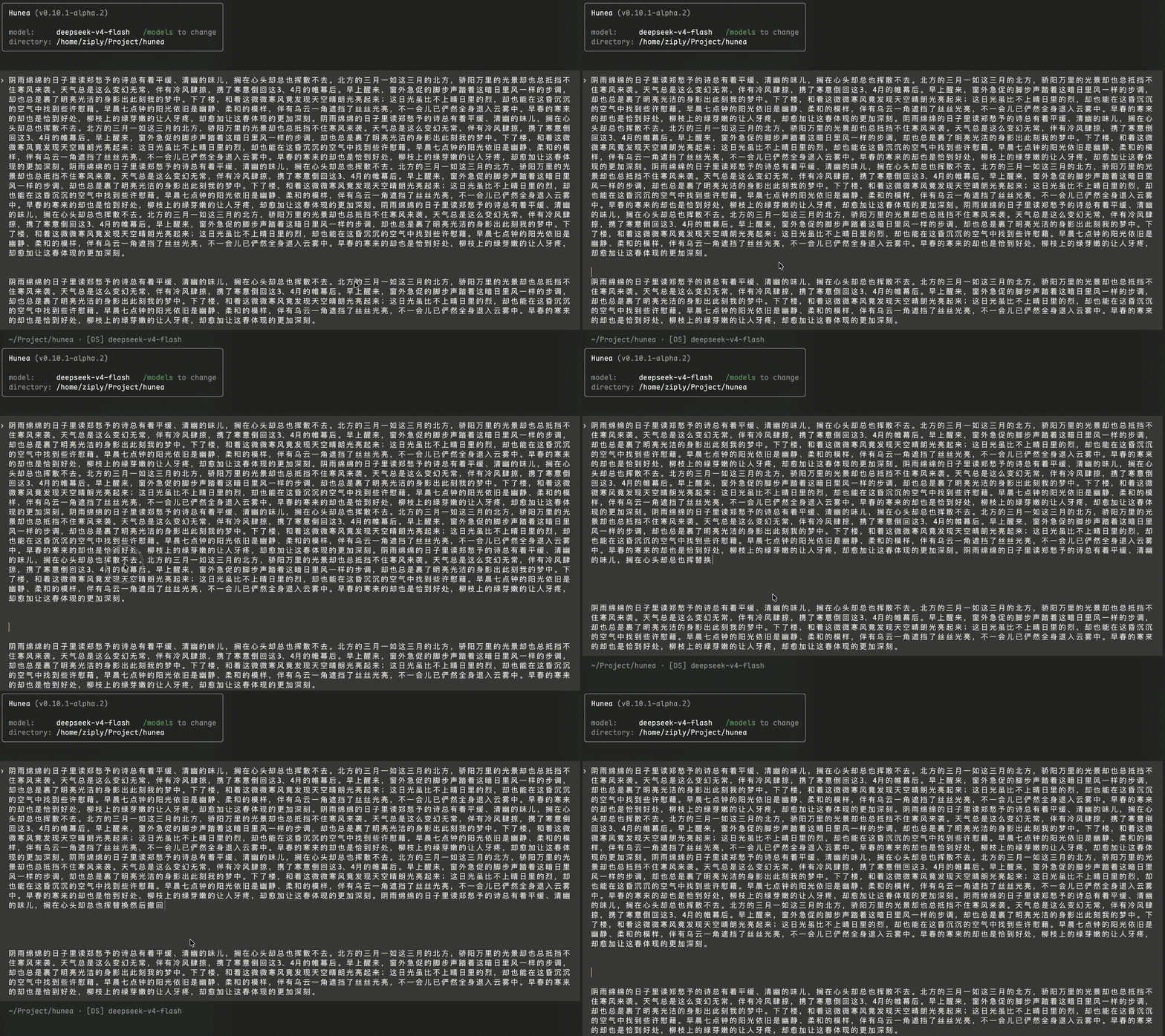
Get the same experience in the TUI as you would with other software.
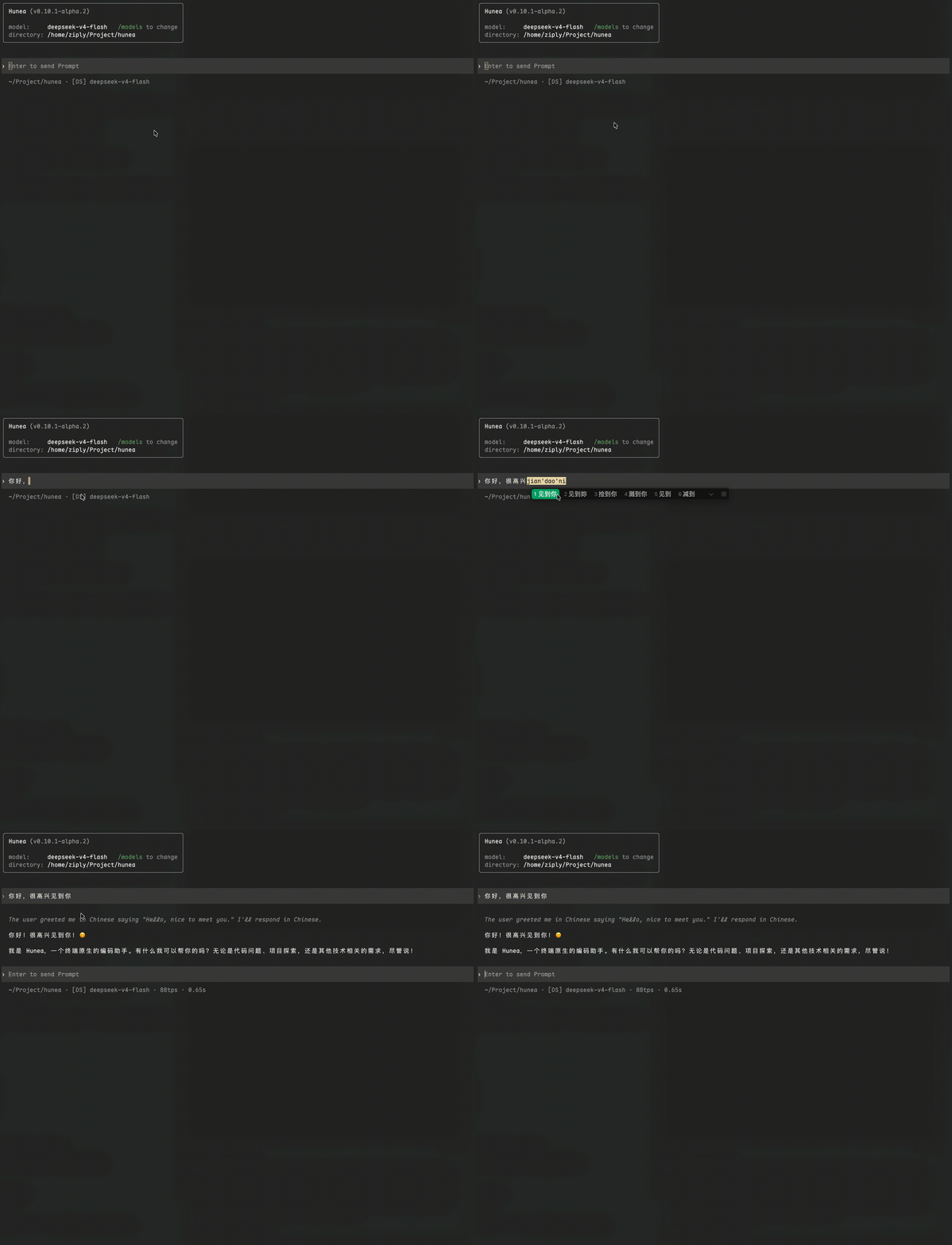
- A calm, harmonious conversation experience with reasoning-chain display (when the selected model is a thinking model), a natural "document-flow" conversation rather than a fixed bottom composer, and subtle status hints. Richer input experiences such as live rendering or a fixed bottom composer may come later — for example, a fixed bottom composer lets you type while reading, without being pulled down to the latest message:
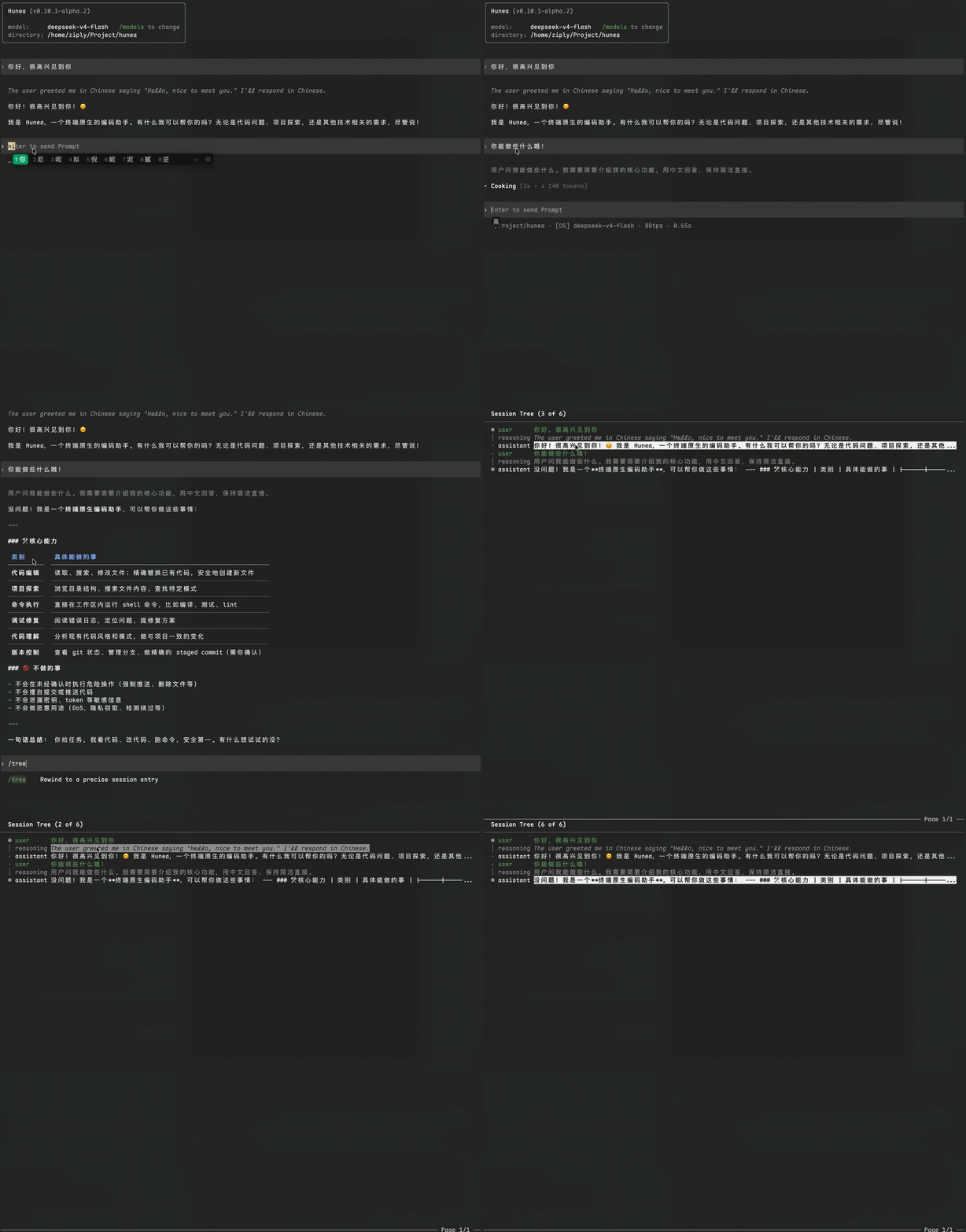
- A visual conversation tree and intuitive, consistent shortcuts. Shortcuts are global and consistent across the project — for example,
Spacealways means "preview" wherever you are, so you never worry about unexpected side effects (the GIF may look a bit blurry due to the screen recorder):
- Easily create conversation branches and manage all branches in one screen. If you're not happy with an answer but don't want to discard the previous one, you can create a branch instead of directly editing the earlier question — editing is convenient but loses the previous answer, while a new branch keeps both the old answer and the conversation. (The blocky noise in the GIF is again from the screen recorder, not the app):
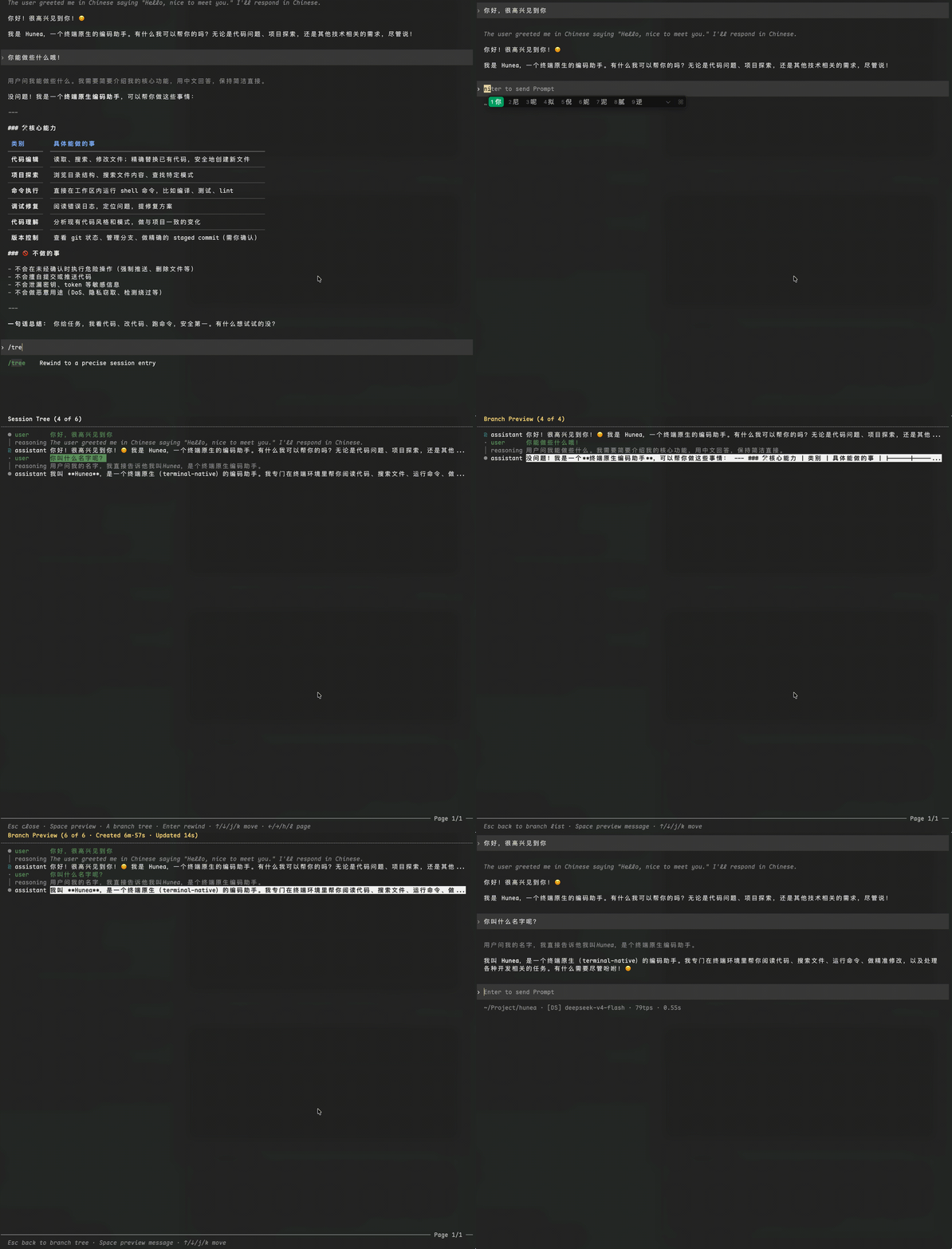
As you can see, via /tree plus Enter you can re-ask a question while keeping the previous conversation; you can switch freely, preview with Space, and open the overview to see all branches.
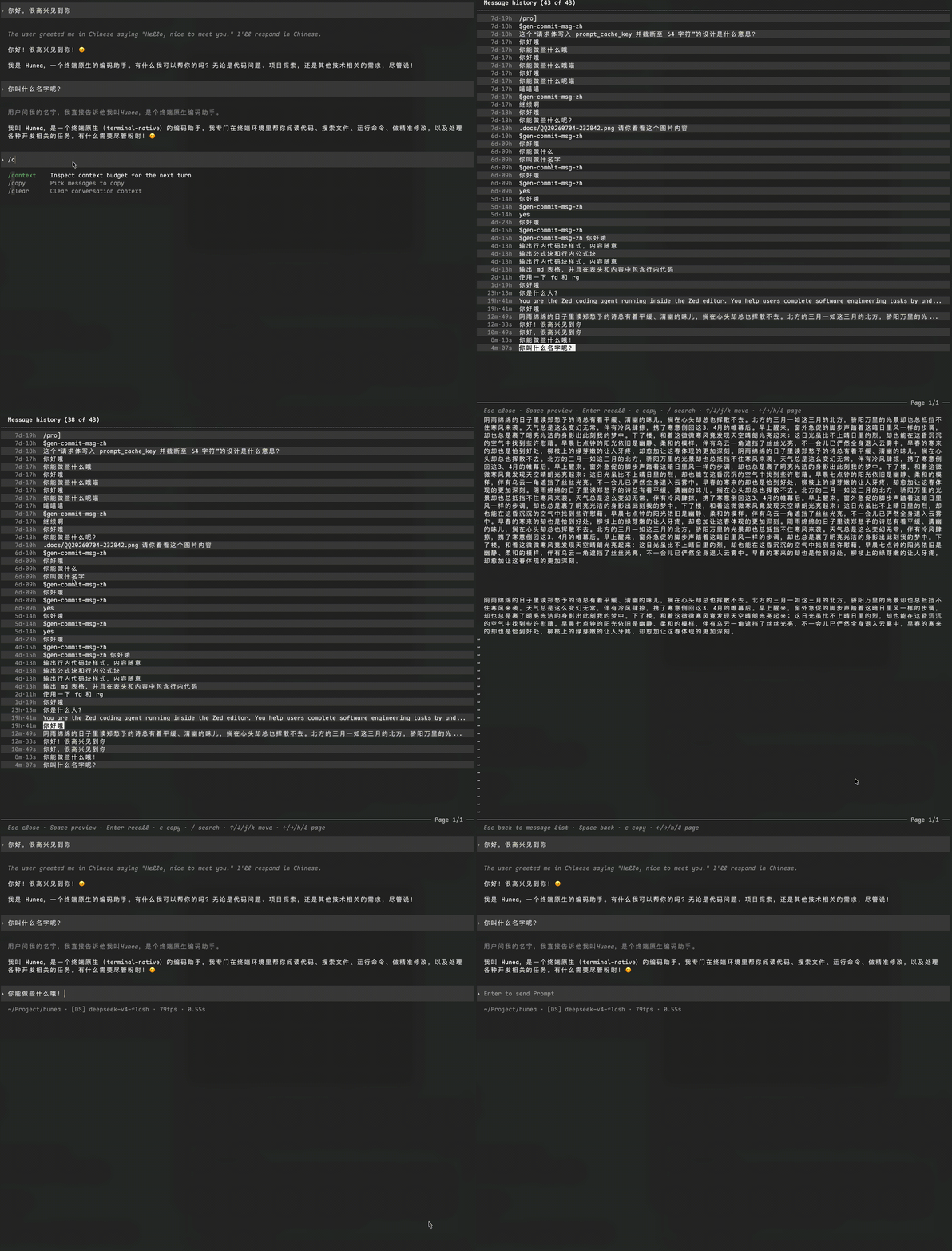
- See exactly what you've sent at any time, for "lazy" resending that saves the cost of keeping notes elsewhere. When you want to be lazy and resend an earlier message without retyping it in a notebook, use the up/down arrow keys to cycle, or pick from the dedicated screen!
- Unified prompt assembly and skill management, with ordered selection and dynamic management. This is a core feature, designed to work with features coming later, addressing how the same prompt performs unevenly across models with different "temperaments." The screen has a lot of functions and is hard to explain verbally, but the operations are intuitive and simple to use:
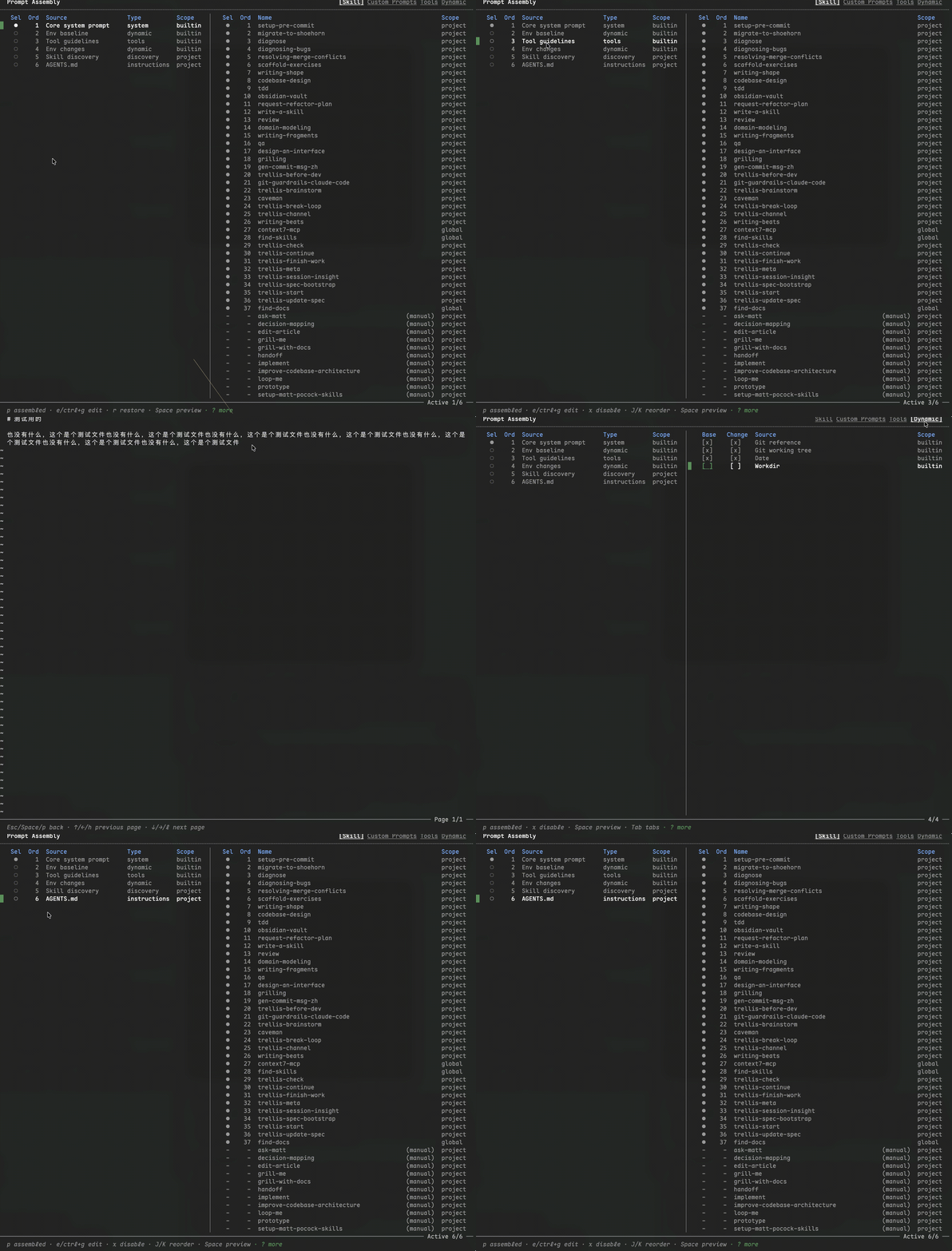
This feature and its follow-ups are also core to Hunea, aiming to explore better per-model customized tool sets and prompt strategies, so each model can reach its own ceiling and fit better into existing workflows. This is the design behind Hunea's Agent core.
- More features not shown here, such as model switching, context usage display, and the accompanying tool-call and usage flow. For brevity, they're not all listed here:
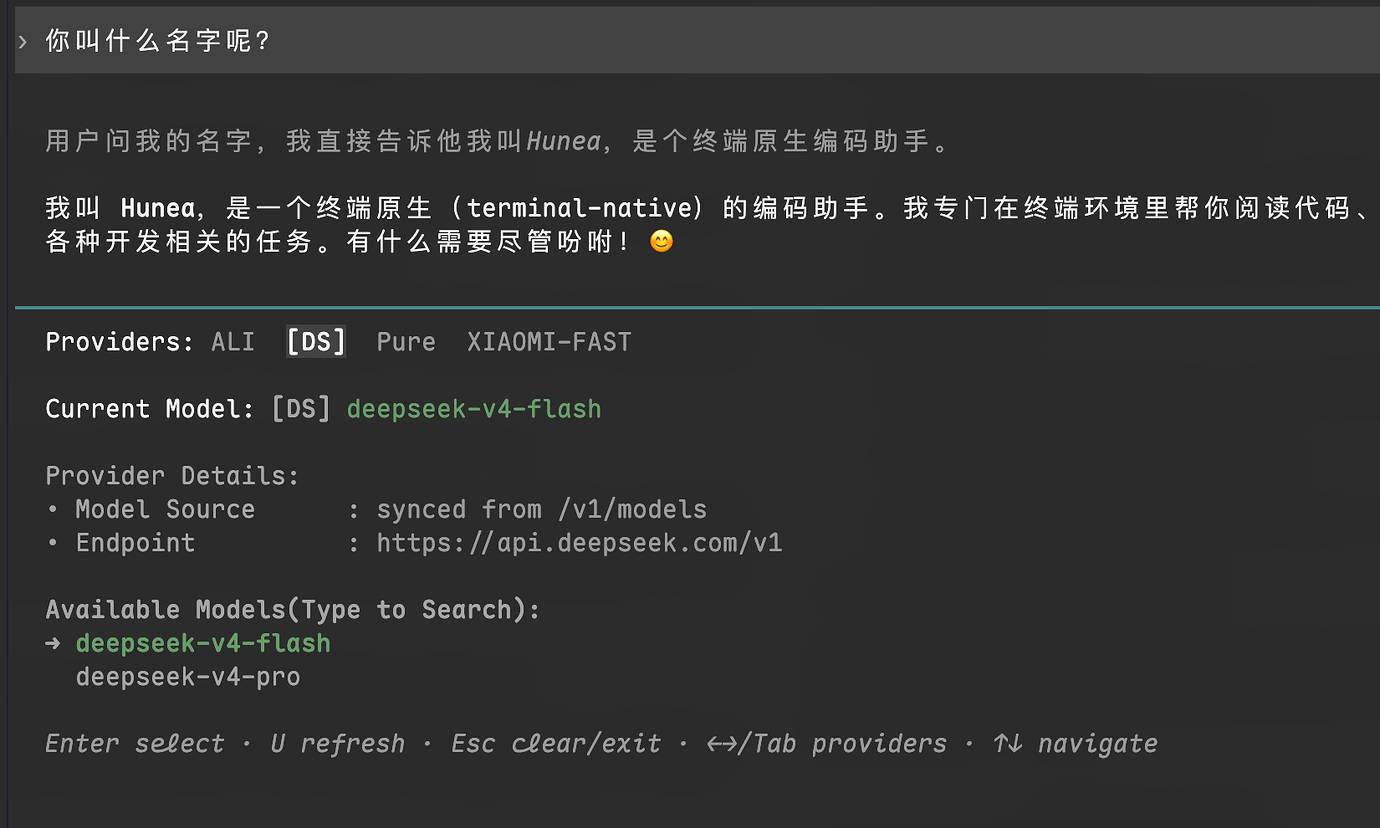
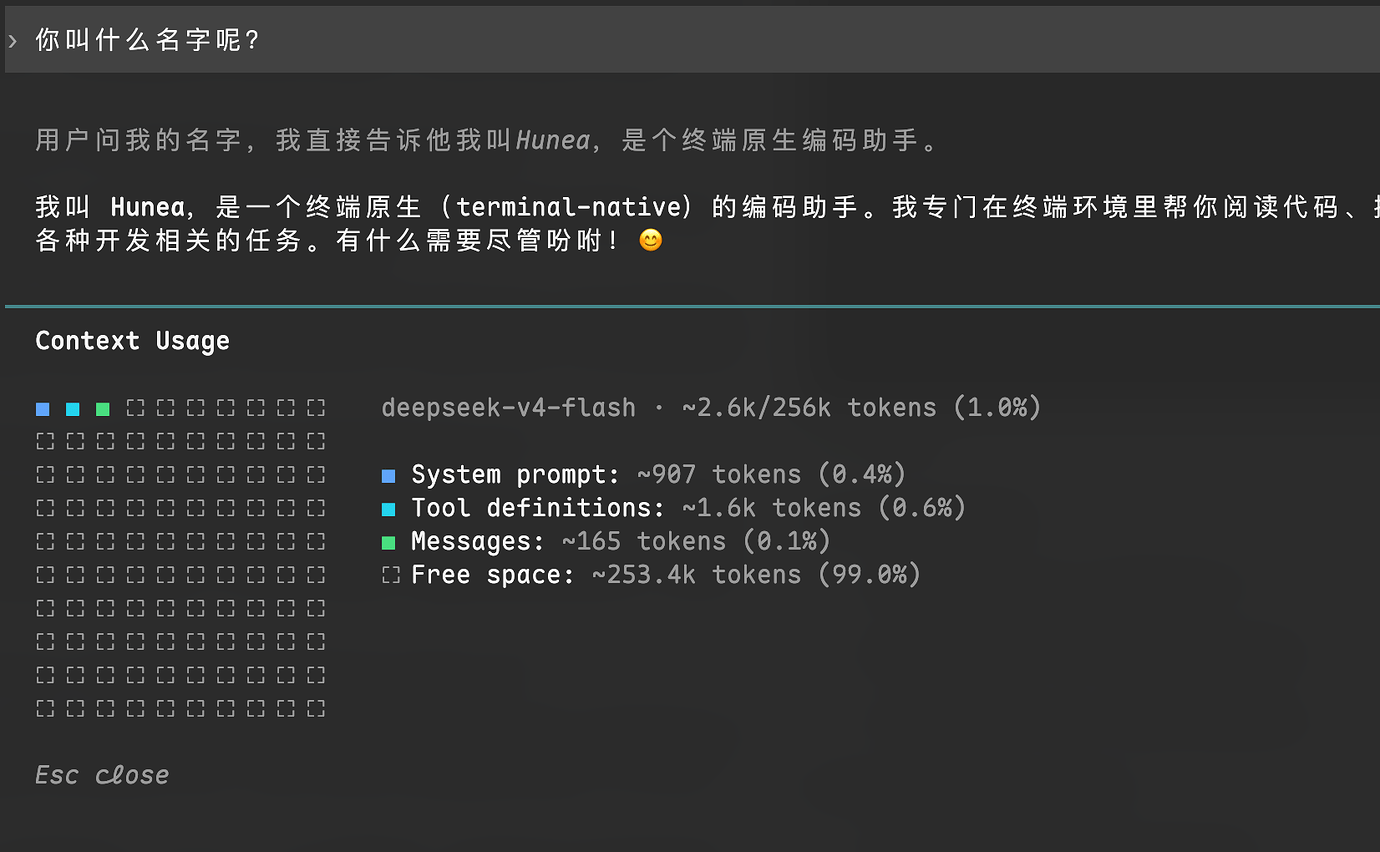
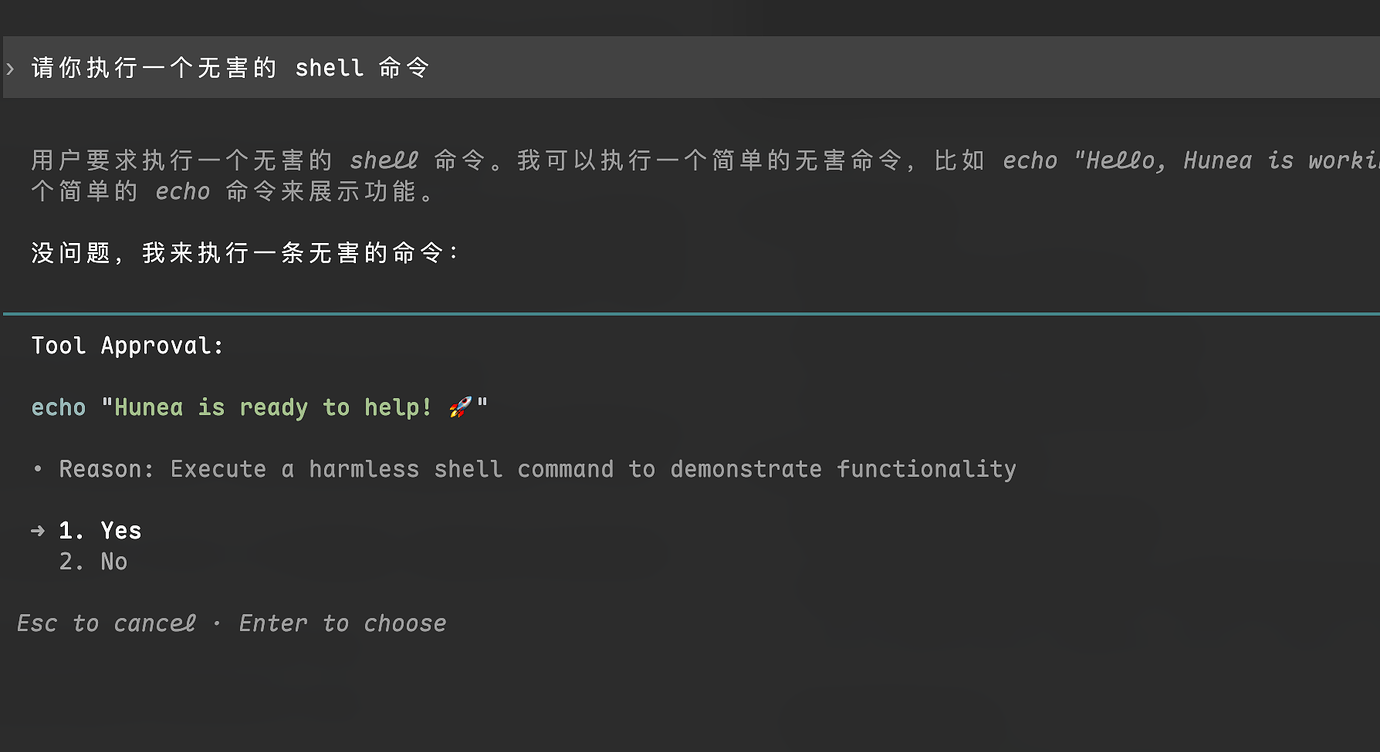
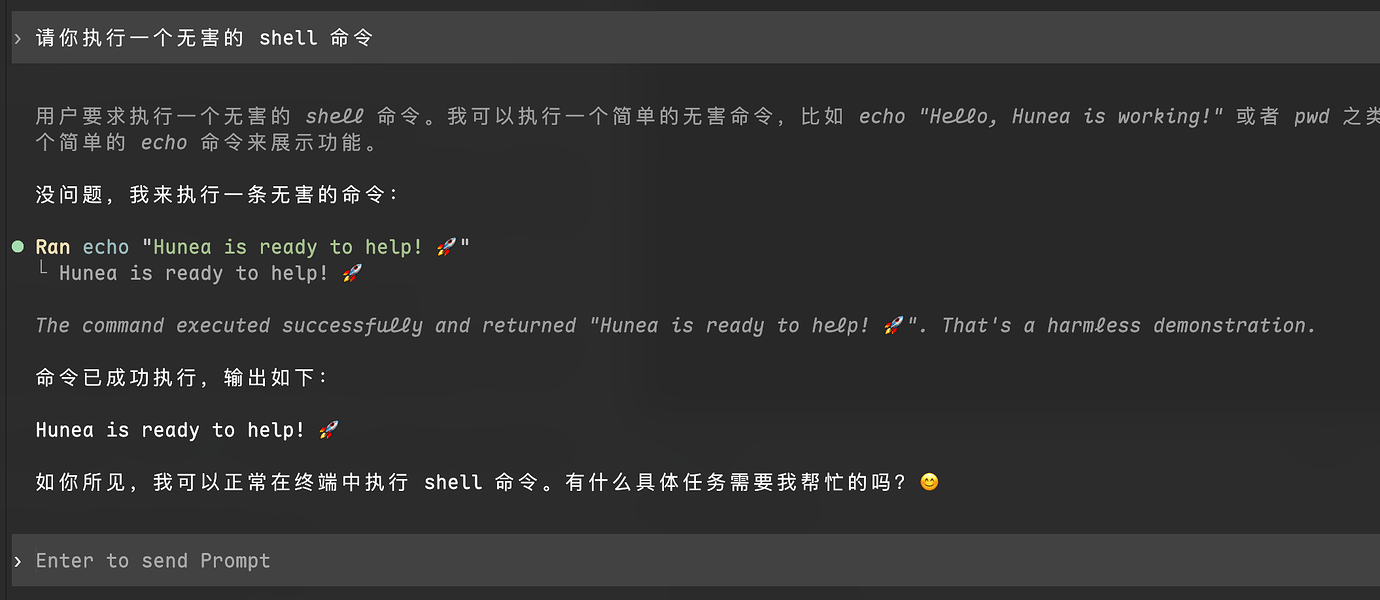
Every feature and its TUI design is polished, all in service of a comfortable TUI experience — making Agent interactions more beautiful and easier to use. That's my original intent.