/resend
/resend refills a previously sent message back into the input box.
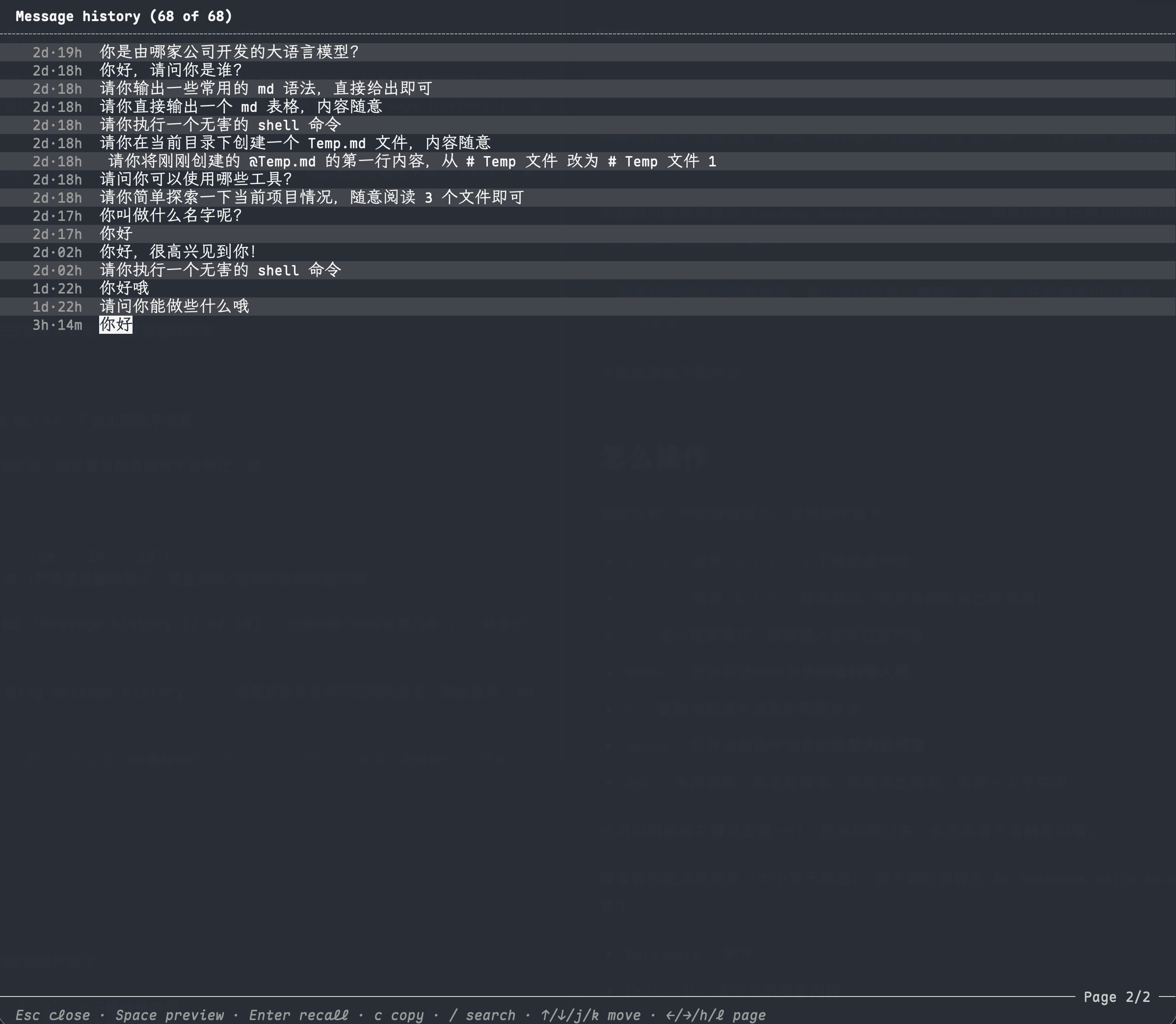
Use it when you want to reuse an old prompt, modify it and send again, or continue writing from an old draft. After typing /resend and confirming, it opens a full-screen message history panel titled Message history — just pick the message you want to refill.
You can also press Ctrl + R directly to open the same panel when no other panel is blocking. It differs slightly from the slash command: when opened via Ctrl + R, it doesn't clear the existing draft in the input box; when opened via /resend from the menu, the input box is already consumed by the command, so it's usually empty when confirmed.
List overview
The panel lists global user message history, not just user messages from the current session. That means: content you sent in other project directories can still be found here as long as it's still kept in this history.
Note:
- Only records user inputs you've sent, assistant replies don't appear here
- Pure blank content isn't stored
- Two consecutive sends with exactly the same content won't store the adjacent duplicate again
Each line generally shows:
- Relative time (e.g.
now,5m,2h,1d) - Summary text of the user message (truncated in the list; full content is used for refill/copy)
The title bar shows your current position, for example Message history (2 of 10), making it easy to see "which item I'm on / how many total".
It may show Loading message history... while loading; if there's no refillable history yet, it shows No sent messages yet.
The list is ordered from oldest to newest, and the cursor defaults to the newest item. After opening, you can usually just press
Enterto refill the latest send.
It roughly looks like this:
How to operate
The bottom shows a shortcut hint. Common operations:
↑/↓, orj/k: move selection up/down←/→, orh/l: page through (useful when there's lots of history)/: enter search mode, keep typing to filter the listEnter: refill the selected message into the input boxc: copy the full text of the selected messageSpace: open a full content preview for the selected messageEsc: close the panel; if searching, exit search first, then close on second press
You can also click a line with the left mouse button to move the cursor there; clicking doesn't trigger refill.
Search matches the full message text (case-insensitive). If no matches, it shows No messages match search. In search mode:
Backspace: delete charactersCtrl + U: clear the current search content- Ordinary letters are treated as search terms, so
c,j/kwon't trigger copy or movement
In preview mode:
EscorSpace: go back to the list←/→/↑/↓, andh/j/k/l: page through longer contentc: still copies the currently previewed item directly
There is no Enter refill in preview; to refill you need to go back to the list and press Enter.
What happens after refill
After selecting and pressing Enter, Hunea will:
- Close the panel
- Write the full content of the selected message into the input box (cursor generally moves to the end)
- Doesn't auto-send; you can continue editing, then send it yourself
If there was an unsent draft in the input box when you opened the panel (typically the Ctrl + R path), Hunea will try to save this draft to message history before replacing it with your selection. This prevents losing half-written drafts when you "abandon writing to reuse an old message".
Note: this is refilling the input box, not resending, nor rewinding the session to an old message. The session tree itself isn't changed by /resend.
List summaries may be truncated due to terminal width, but refill and c copy both get the full text, not the ellipsized version you see on screen. Success/failure toasts for copying match other copy paths (similar to Selection copied / Copy selection failed).
How much history is kept
This global history has an item limit, configured by:
- Default
100 - Configurable range is roughly
100to1000 - When the limit is exceeded, older items are dropped first to keep newer ones
The data lives in Hunea's data directory (usually ~/.config/hunea/), and it's cross-project global history — not a separate list per workspace.
Usage tips
- You just want to quickly reuse "the last one": after opening, the cursor is already on the newest item — just press
Enter. - When history is long, searching for keywords with
/is faster than scrolling up and down. - You already have a half-written input and want to compare with an old message: open with
Ctrl + R, your draft is kept; and before refill, your draft will be saved to history anyway. - You just want the text, don't want to refill the input: press
cto copy in the list or preview.
If you actually want to select and copy user/assistant messages from the current session, /copy is more appropriate than /resend.