/copy
Use /copy to select messages from the current session and copy them to your system clipboard.
It's useful when you need to copy out a question, an assistant reply, or multiple messages together (for example, writing docs, pasting to an issue, or continuing the discussion elsewhere). After typing /copy and confirming, it opens a full-screen message selection panel titled Copy Messages — just pick your targets and choose a copy format.
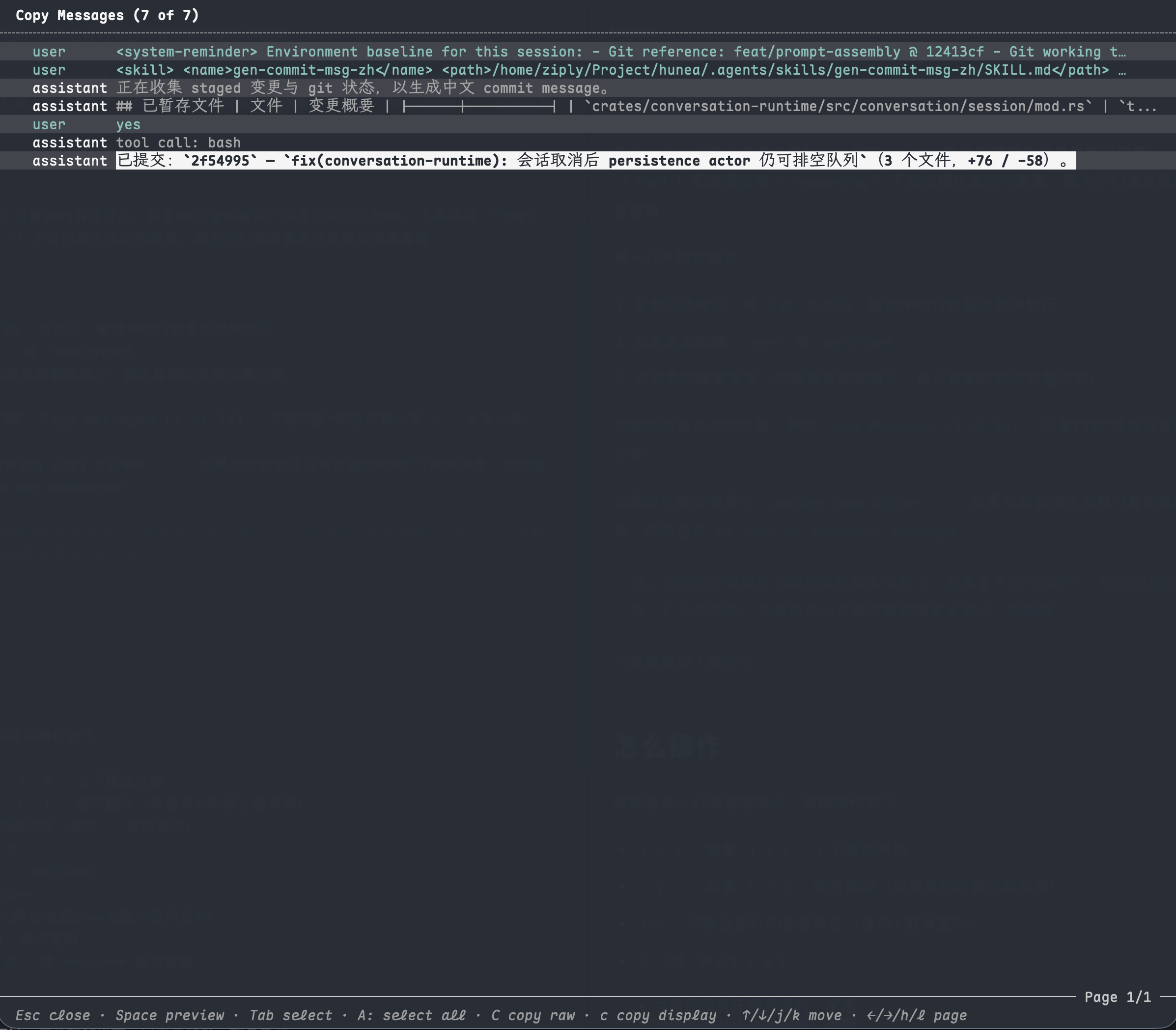
List overview
The panel lists copyable message nodes in the current session, and only keeps user messages and assistant replies. Tool calls (tool) and reasoning processes (reasoning) don't appear here because they're usually better viewed in the original session.
Each line generally shows:
- Left-side checkmark: after multi-select with
Tab, selected lines show a color swatch - Message type prefix:
userorassistant - Summary text of the message (truncated in the list; full content is copied)
The title bar shows your current position, for example Copy Messages (3 of 12), making it easy to see "which item I'm on / how many total".
It may show Loading copy picker... while loading; if the current session has no copyable user/assistant messages, it will show No user or assistant messages.
By default the cursor tries to land on the currently relevant message; if "current line" isn't available, it falls back to the newest item in the list. When you open the panel, you can usually just press the copy key to get the latest round.
It roughly looks like this:
How to operate
The bottom shows a shortcut hint. Common operations:
↑/↓, orj/k: move cursor up/down←/→, orh/l: page through (useful when there are many messages)Tab: toggle multi-selection state for the current line (select / deselect)A(orShift + A):- If nothing is selected yet: select all
- If already have selections: invert selection
Space: open a full content preview for the message under the cursorc: copy in display formatC(orShift + C): copy in raw formatEsc: close the panel
You can also click a line with the left mouse button to move the cursor there; clicking doesn't trigger copying.
After multi-select, the footer will additionally show something like · 2 selected, so you can confirm how many will be copied.
In preview mode:
EscorSpace: go back to the list←/→/↑/↓, andh/j/k/l: page through longer contentc/C: still copies directly (see "Which items get copied" below)
Which items get copied
When you press c or C, the target set follows these rules:
- If you're already in preview mode: only copy the currently previewed item (won't include multi-selections from the list)
- If you're in the list and have multi-selections: all checked messages are concatenated in list order and copied
- If you're in the list and no selections: copy the item under the cursor
When multiple messages are concatenated, they're separated by blank lines (three newlines in implementation), so it reads more like segmented excerpts rather than one solid block.
Note:
- After successful copying, the panel doesn't close automatically. You can continue selecting and copying, or press
Escto exit. - List summaries may be truncated due to terminal width, but the full message text is copied, not the ellipsized version you see on screen.
What's the difference between raw and display
/copy provides two copy formats, corresponding to C copy raw and c copy display in the footer:
For user messages, the difference is usually small. For assistant replies, the difference is more noticeable: if the assistant message has tool calls and other replayable fragments attached, display will generally include these display texts together; raw leans more towards the original content of the message body itself.
In short:
- You want the original message body as much as possible → use
C(raw) - You want the readable version closer to what you see in the TUI → use
c(display)
When unsure, you can press Space to preview first, then decide which format to use.
What happens after copying
After confirming copy, Hunea writes the concatenated text to the clipboard (prefers system clipboard; falls back to terminal clipboard protocols in some environments). Success typically shows a toast like Selection copied; failure shows Copy selection failed.
If there are no copyable user/assistant messages but you still press copy, it will toast No user or assistant messages to copy and won't write empty content.
If clipboard write fails, your existing selections aren't cleared, so you can retry after checking your environment without re-selecting everything.
Usage tips
- You just want "the last assistant reply": after opening
/copy, the cursor is already near the latest message — just presscorC. - To整理 a full round of Q&A: use
Tabto check the relevantuser/assistantmessages, then copy all at once. - For long sessions, paging with
h/lto locate is faster than scrolling one by one through a long list. - To confirm content first:
Spacepreview → copy directly from preview withc/C, or go back to the list and copy.
If you actually want to refill an old user input back into the input box, /resend is more appropriate than /copy.