/resume
/resume resumes a previously saved session.
Use it when you re-open Hunea after exiting and want to continue from the last conversation, or when you want to switch back to an earlier saved conversation in the current working area. After typing /resume and confirming, it opens a full-screen session selection panel titled Resume Session — just pick the session you want to resume.
List overview
The panel lists previously saved sessions for the current working directory/project, and doesn't include the currently active session (since you're already in it).
Each entry generally shows three lines of information:
- Summary of the first user message in the session (falls back to session title if there are no user messages)
- Summary of the most recent assistant reply (similarly, falls back to title if none exists)
- Metadata: relative time (e.g.
now,5m,2h,1d) · working directory · session size (if available)
It may briefly show Loading sessions... while loading; if there are no resumable sessions for the current project, it shows No sessions.
Session data lives in Hunea's data directory (usually
~/.config/hunea/). But/resumefilters by the currently opened working directory, so the list changes when you launch from a different project directory.
It roughly looks like this:
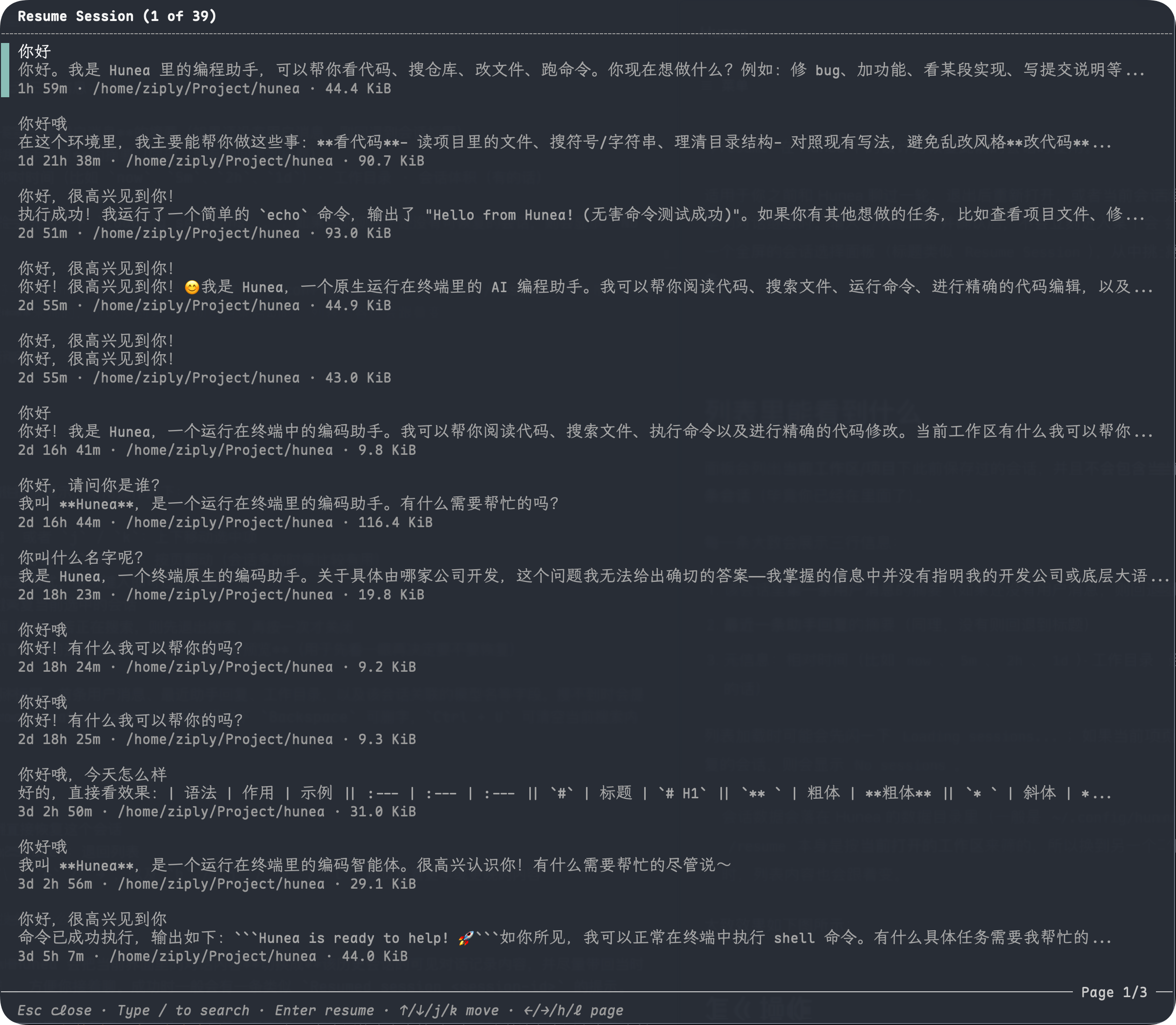
The currently selected entry is marked with a color block on the left, and the first line uses normal text color instead of dimmed.
How to operate
The bottom shows a shortcut hint. Common operations:
↑/↓, orj/k: move selection up/down←/→, orh/l: page through (useful when there are many sessions)/: enter search mode, keep typing to filter the listEnter: resume the selected sessionEsc: close the panel; if searching, exit search first, then close on second pressSpace: open a full message history preview for the selected session (to inspect before deciding to resume)
Search matches session title, first user message, latest assistant reply, working directory, and associated model name. If no matches, it shows No sessions match search. In search mode, Backspace deletes characters and Ctrl + U clears the search.
In preview mode:
Enter: directly resume this sessionEscorSpace: go back to the list↑/↓/←/→, andh/j/k/l: page through earlier/later content
What happens after resume
After selection and confirmation, Hunea switches the conversation content in the current UI to the visible conversation of that historical session, and tries to bring back the model selection from that time so you can continue chatting. Success typically shows a toast like Resumed session <session-id>.
Note: this is switching to another saved session, not merging the content of two sessions together. The current session doesn't disappear, and it will usually appear as an option in the list when you open /resume again later (provided it was stored successfully and is no longer the active session).
If you just want to clear the current context and start a new conversation, /clear (alias /new) is more appropriate than /resume. For exiting the application, see /exit.
Usage tips
- You want to quickly continue "the last session": after opening
/resume, just pressEnteron the first entry — the list is sorted by last updated time in reverse order, so the top entry is usually the "newest". - When there are many sessions with long titles, searching for keywords from the first user message with
/is much faster than scanning the list with your eyes. - If you're not sure it's the right session, press
Spaceto preview the full content first, thenEnterto resume — saves switching back and forth.