/context
Type /context to view the current session's context usage. It helps you understand how much of the context window your current session is using, how much space remains, and which parts contribute most to the usage.
After confirmation, it opens an inline panel near the input area titled Context Usage.
It roughly looks like this:
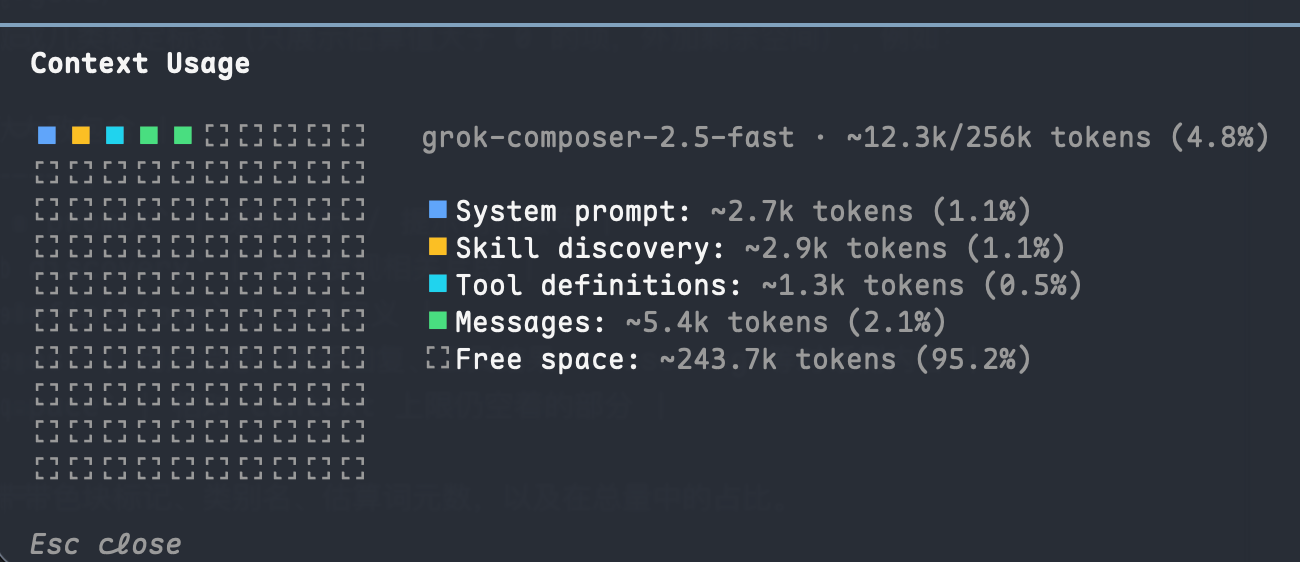
The numbers here are estimates. The panel uses
~to indicate they are estimates, not exact actual values.
Panel overview
It may show Loading context budget... while loading. Once ready, you'll generally see:
-
Summary line
Formatted asmodel id · ~used/total tokens (percentage), for examplegpt-4o · ~32k/128k tokens (25.0%). The total comes from the current model's context window configuration (see "Where does the total come from" below). -
Heatmap (colored grid)
Uses colored blocks to proportionally display the share of each usage category in the total window; free space is also marked with a separate style. It doesn't map "which message occupies which cell" exactly — it's just a visualization of proportions: whether system prompts, tool definitions, or conversation messages themselves are the main contributors. -
Legend
Currently there are several categories (only shows items with estimate > 0, plus free space):
Each legend line typically includes a color swatch, category name, estimated token count, and percentage of the total. Press Esc to close the panel. The current version doesn't have additional interactive shortcuts. If your terminal is too narrow, it may indicate insufficient space to display the full budget panel; just resize the terminal wider and open it again.
What does it estimate?
/context estimates how the next request to be sent to the provider would occupy the context window, based on the current session state.
Therefore it includes system content, tool definitions, historical messages (and related tool results / reasoning, etc.) in segmented estimation. If the runtime already has context total information from the provider, the "total used" display may be calibrated accordingly to make the percentage closer to the actual request size, but the segmented breakdown remains an estimate.
In short:
- To check "Can I keep chatting / should I use
/clear?" → Look at the used/total and percentage in the summary line - To check "What exactly is using up the context?" → Look at the heatmap + legend breakdown
Where does the total come from?
The total (shown in the summary line or on the right side of the panel) is parsed from the model's context window, with roughly this priority:
providers.<id>.model_profiles.<model>.context_window(most specific)defaults.context_window(global default)- Built-in rules: match by model family; unrecognized models fall back to a built-in default value
All of these can be configured in models.toml. If the context length of your local model is non-standard, it's recommended to explicitly set context_window in the corresponding model_profiles, otherwise the /context budget bar may render with a larger default upper limit that doesn't match the real window. For more complete configuration instructions, see models.toml.