/tree
/tree precisely backtracks to a message node in the current session. This is a signature feature of Hunea, inspired by pi — thanks for that.
Use it when you want to go back to a user message, assistant reply, or tool result node, continue chatting from there, modify and resend, or switch to another branch. After typing /tree and confirming, it opens a full-screen session tree panel titled Session Tree.
With the default esc_rewind_mode = "coarse", /tree appears in the slash menu. Note: double-pressing Esc in an empty input box does not open /tree — instead it enters another "edit/resend by user message round" interaction (truncates after that message and refills the content into the input box, see /sends-back).
Only when esc_rewind_mode is configured to "entry" does double-pressing Esc open /tree; at the same time, the menu changes to show /sends-back — the two don't appear in the slash menu at the same time. That means the menu item and double-Esc correspond to the two backtracking modes separately; changing configuration just swaps their entry points.
Simple distinction:
/treeis for precise node selection on the session tree, preserves existing content and creates branches;/sends-back(and double-Escin default coarse mode) is more focused on editing/resending by user message round.
List overview
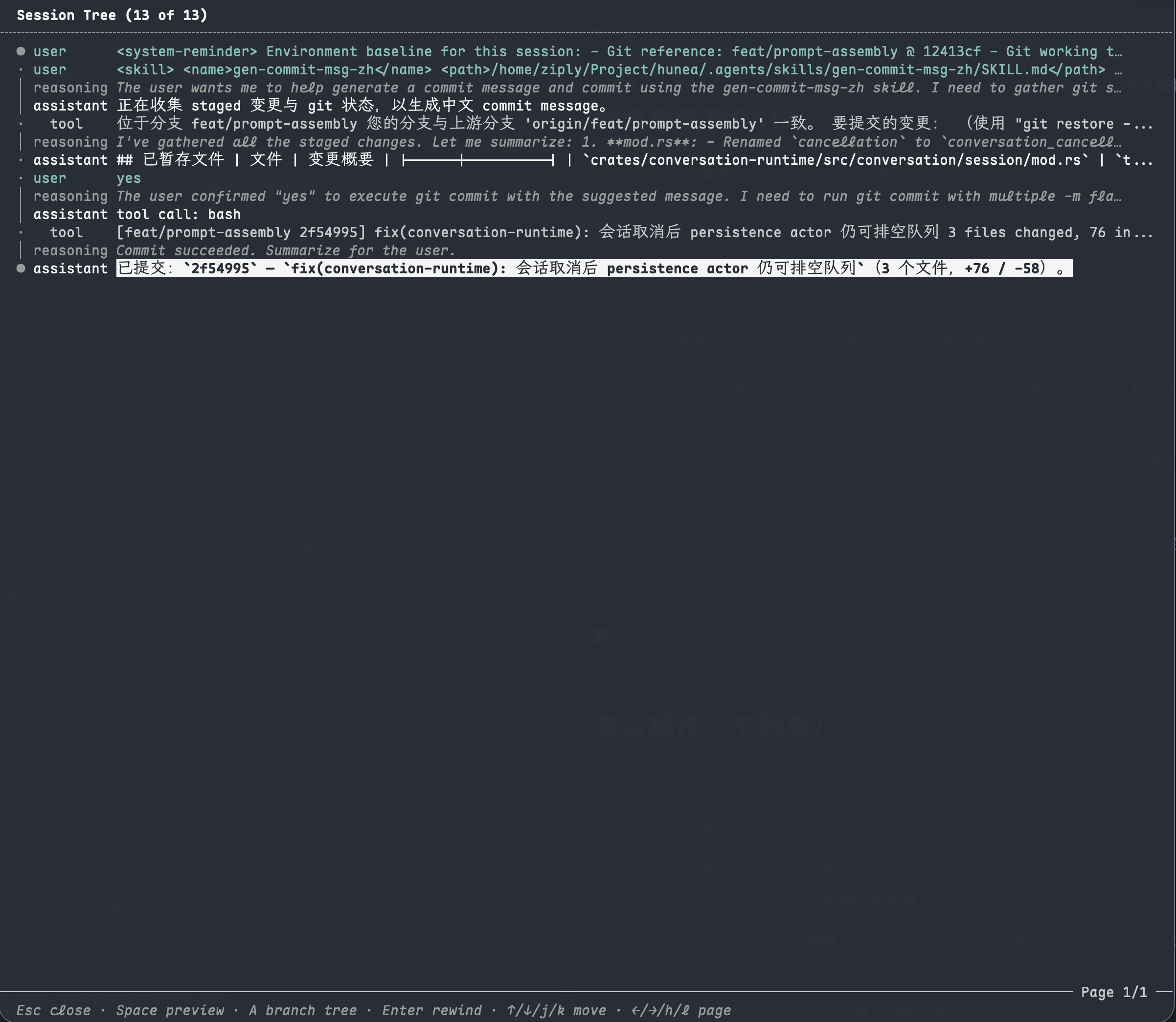
The panel shows the logical message tree of the current session, not global history.
Each line generally shows:
- Left-side tree connections / indentation diagram (more obvious when there are branches)
- Message type prefix:
user,assistant,tool,reasoning - Summary text of the node (truncated in the list; see full content in preview)
The title bar shows your current position, for example Session Tree (3 of 12), making it easy to see "which item I'm on / how many total".
It may show Loading session tree... while loading; if the current session has no displayable messages yet, it shows No messages yet.
By default the cursor tries to land on the currently relevant node; if "current line" isn't available, it falls back to the newest item in the list.
It roughly looks like this:
How to operate (main list)
The bottom shows a shortcut hint. Common operations:
↑/↓, orj/k: move selection up/down←/→, orh/l: page through (useful when there are many nodes)Space: open a full content preview for the currently selected nodeTab: if the current node has at least two sibling branches, open the branch selection popup (Switch branch)A: open the complete branch topology view (Branch Tree)Enter: if the current node is backtrackable, precisely backtrack to this nodeEsc: close the panel
You can also click a line with the left mouse button to move the cursor there; clicking doesn't trigger backtracking.
The footer hint changes with the current selection:
Enter rewindonly appears when the current line is backtrackableTab branchonly appears when the current line has multiple branches to choose from
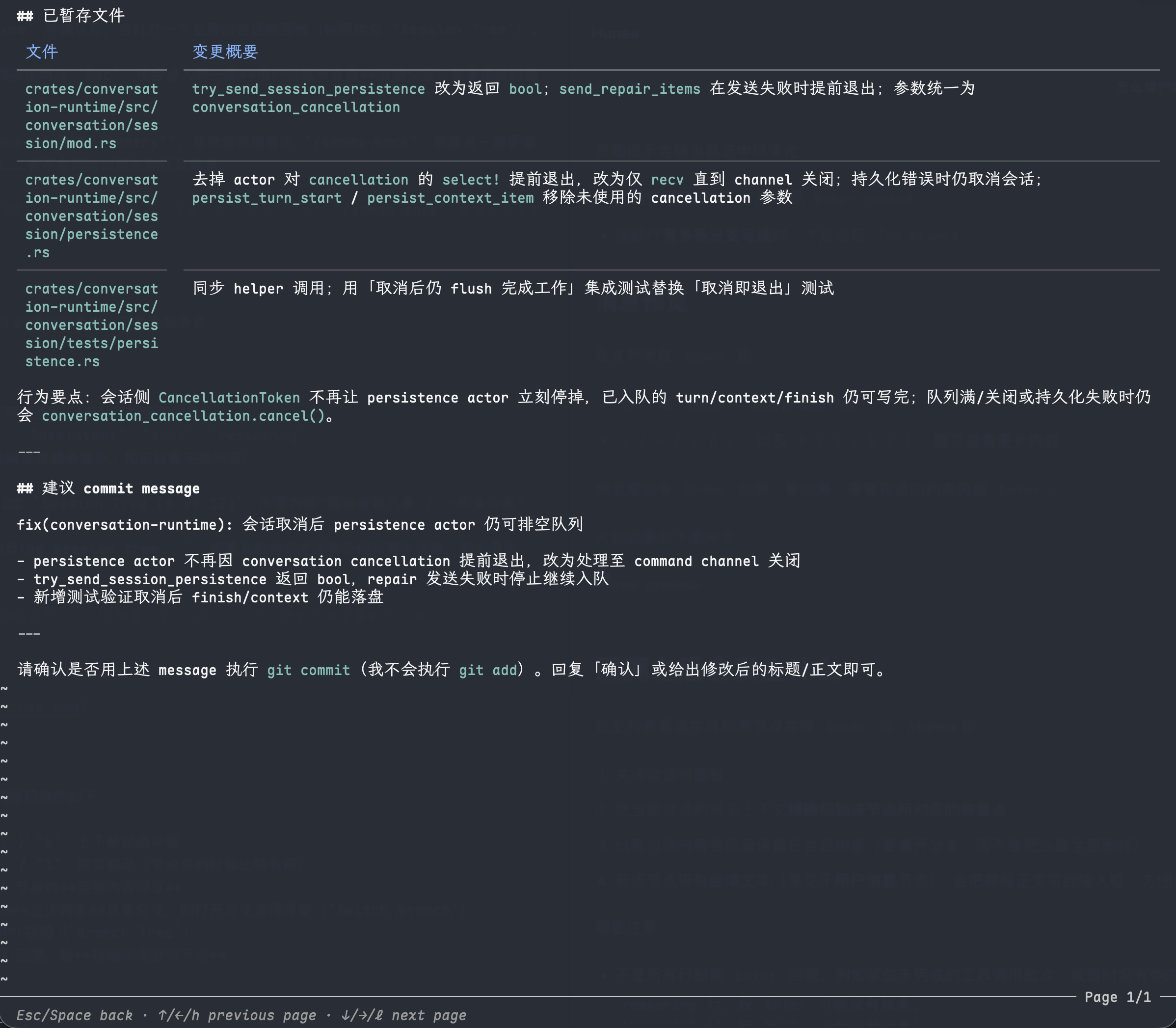
Message preview
After pressing Space in the main list:
EscorSpace: go back to the session tree list←/→/↑/↓, andh/j/k/l: page through longer content
There is no Enter backtracking in preview; to backtrack you need to go back to the list and press Enter.
It roughly looks like this:
What happens after backtracking
After selecting a backtrackable node in the main list and pressing Enter, Hunea will:
- Close the session tree panel
- Precisely cut the visible context of the current session to the restore point corresponding to this node
- Existing conversation content is preserved in the session tree as much as possible (more like opening a branch than deleting everything after)
- If the node has refillable text (common for user message nodes), that content is written back to the input box so you can edit and resend it.
Note:
- Not all rows allow
Enterbacktracking. For example, some incomplete tool call batches, orreasoninglines that don't have a restore target may have no effect when you pressEnter. - This is intra-session node backtracking / branch positioning, not switching to another saved session like
/resume, nor just refilling global user history like/resend.
Branch selection popup (Tab)
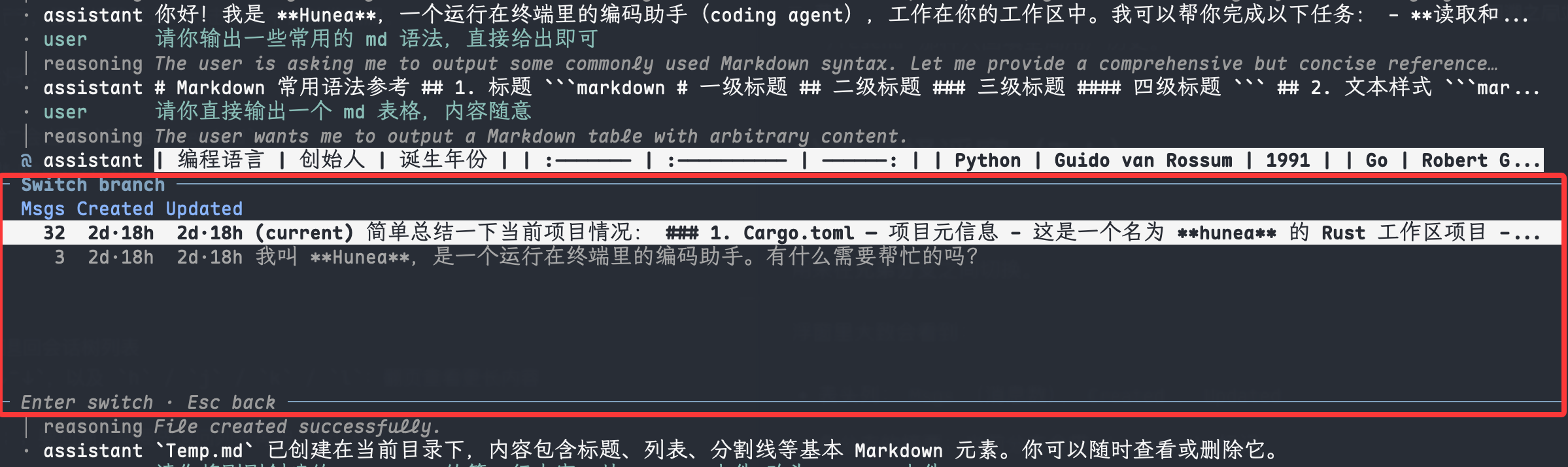
When a node already has multiple paths under it, pressing Tab on that row pops up a Switch branch popup near the list, for switching between sibling branches.
In the popup you'll generally see:
- Header columns:
Msgs(message count),Created,Updated - Summary of each branch; the current branch has a
(current)mark - Bottom hint:
Enter switch/Space preview branch/Esc back
Operations:
↑/↓, orj/k: move in the branch listEnter: switch to the selected branchSpace: preview the session tree content of a non-current branch (usually won't open preview on the current branch)Esc: close the popup, go back to the main session tree
It roughly looks like this:
You can adjust the visible row count for the popup with configuration:
- Default
7 - Configurable range is roughly
3to14
Complete branch tree (A)
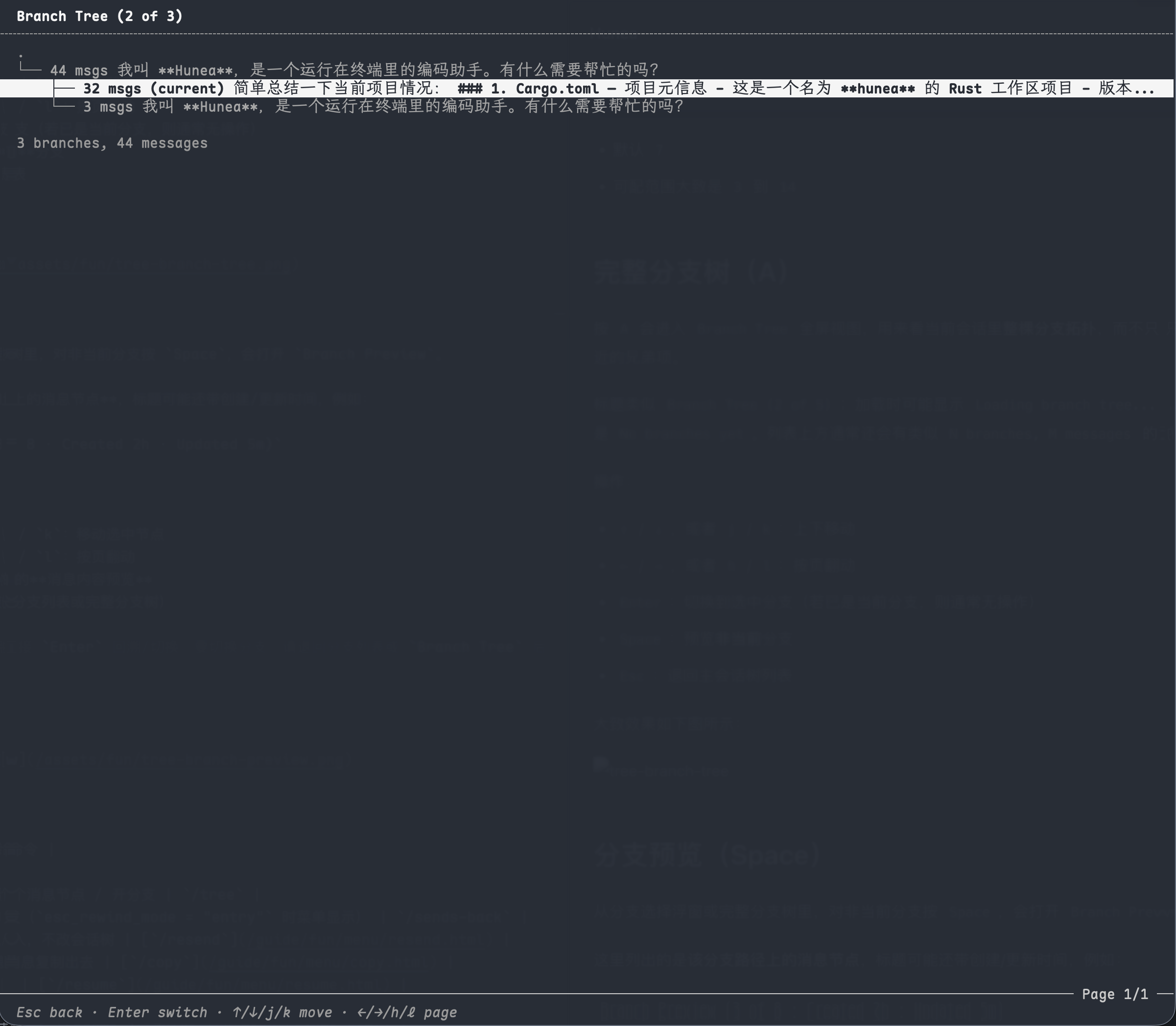
Pressing A enters the Branch Tree full-screen view, which shows the entire branch topology in the current session, not just sibling items near a fork.
The title is like Branch Tree (2 of 5); it may show Loading branch tree... while loading, or No branches yet if there are no branches. Above the list there's usually a summary like N branches, M messages.
Operations:
↑/↓, orj/k: move up/down←/→, orh/l: page throughEnter: switch to the selected branch (no operation if it's already the current branch)Space: preview a non-current branchEsc: go back to the main session tree list
It roughly looks like this:
Branch preview (Space)
From the branch selection popup or complete branch tree, pressing Space on a non-current branch opens Branch Preview.
This lists the message nodes on that branch path, and the title may also include creation/update time, for example:
Branch Preview (3 of 8 · Created 2h · Updated 5m)
And the title itself has a different color for easier distinction.
In branch preview:
↑/↓, orj/k: move selected node←/→, orh/l: page throughSpace: open a message content preview for this nodeEsc: go back to the source interface (branch list or complete branch tree)
Branch preview itself doesn't support direct
Enterbacktracking/switching; to switch branches, go back to the branch list orBranch Treeand pressEnter.
It roughly looks like this:

How it differs from related commands
The menu mutual exclusion with /sends-back is also mentioned in the slash menu overview.
Related configuration
Usage tips
- You just want to go back to "near the last round": after opening
/tree, the cursor is already near the current node — just move up to the target row andEnter. - If you're not sure you have the right node:
Spaceto preview the content first, then go back to the list and backtrack. - When there are multiple branches at a fork: press
Tabon the fork node, compare withMsgs / Created / Updated, thenEnterto switch. - When there are many branches and deep levels: use
Ato see the fullBranch Tree— clearer than searching in the main list. - You just want to confirm what another branch looks like before switching: press
Spaceto preview non-current items in the branch list or branch tree.