/models
Type /models to select a model for the current session.
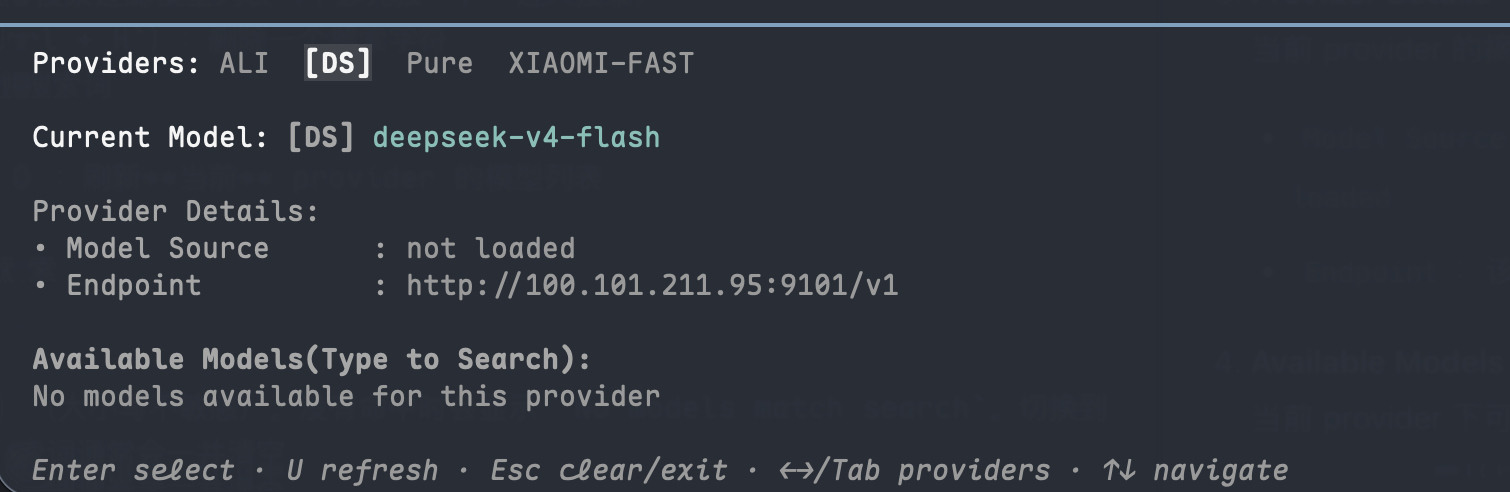
Open it when you want to switch providers, change to a different model to continue chatting, or just confirm which model is currently selected. After confirmation, it opens an inline panel near the input area (replacing the original input box) to browse all enabled providers and models.
Panel overview
The panel generally includes from top to bottom:
-
Providers tab row
Formatted likeProviders: [Local] DeepSeek OpenAI. The currently selected provider is marked with brackets. -
Current Model
The model selected for the current session, for example[Local] qwen3; showsnoneif nothing has been selected yet. -
Provider Details
Summary information for the current provider, commonly two items:Model Source: where the model list comes from, e.g.configured,synced from /v1/models,not loadedEndpoint: thebase_urlfor this provider; showsnot configuredif not set.
-
Available Models
List of selectable models under the current provider. Before searching, the title isAvailable Models (Type to Search):; after you start typing, it changes toSearch: <your search term>.
The current cursor row is marked with➜on the left; if an item is already the currently selected model, it will be more prominent in display. If there's a description, it appears below the model id.
The bottom has a fixed shortcut hint:
Enter select · U refresh · Esc clear/exit · ←→/Tab providers · ↑↓ navigate
If no providers are enabled, Providers shows [No Providers] and the model area may show No enabled models. If a provider has an empty list, it may show No models available for this provider; if sync failed previously, you may directly see Sync failed: ....
It roughly looks like this:
How to operate
Common operations:
←/→, orTab/Shift + Tab: switch between providers (cycles)↑/↓: move up/down in the model list of the current provider- Type directly: instantly search and filter the model list (no need to press
/to enter search mode first) Backspace(orCtrl + H): delete one search characterCtrl + U: clear the current search termEnter: select the current modelU(orShift + U): refresh the model list for the current providerEsc:- If searching: clear search first
- If search is empty: close the panel
Search matches model id and description (case-insensitive). If no matches, it shows No models match search. Switching to another provider generally clears the search term.
Note: Vertical navigation uses arrow keys,
j/kare not bound like in some full-screen lists. Mouse clicking isn't implemented either, because I consider this a low-frequency operation so the design doesn't need overly complex interaction.
What happens after selection
After selecting a model in the list and pressing Enter, Hunea will:
- Set this model as the one used by the current session
- Close the
/modelspanel - Show a toast like
Model selected: [Local] qwen3 - Try to write this selection back to
defaultinmodels.toml(in the formprovider/model), so the same selection persists on next startup
Therefore it affects both "what model to use for future rounds" and updates the default model configuration when possible. Historical messages themselves aren't rewritten when you change models; only subsequent requests use the newly selected model.
If writing back the default model fails, you'll generally see an error like Failed to save default model: ...; the current selection in the UI may have already changed, but the configuration file may not have updated successfully.
Relationship to actual request capabilities
Multiple kind types can be configured in models.toml (configuration parsing recognizes these names), but currently only these can actually initiate chat / streaming replies:
openai_compatible(must configurebase_url, usually includes/v1)openai_responses(Responses API; also requiresbase_url)openai(uses official OpenAI base URL by default, you can configurebase_urlyourself)
Other kinds may still appear in the panel and configuration validation, but will return "unsupported" at the request stage when selected. Automatic model list syncing from /models currently covers mostly OpenAI-compatible providers. When configuring providers, it's recommended to prioritize the three types above to avoid "visible in list but can't send request" situations.
For more complete field documentation, see models.toml.
Refreshing the model list (U)
Press U to request a refresh of the available models for the current provider. Useful when:
- Your local model service just loaded/unloaded new models
- You omitted the
modelsallowlist and want to sync again from remote/models - Previous sync failed and you want to retry
On successful refresh, you'll typically see Models refreshed: <provider display name> and the list updates to the new results. If the currently selected model is no longer in the new list after refresh, the selection may be cleared and you'll need to pick again.
If refresh fails, the existing list is generally preserved as much as possible, and you'll see an error like Failed to refresh models for Local: connection refused; the Sync failed: ... message in the panel may also update. If a refresh task is already running, triggering it again may show Model refresh is already running.
Where do models come from
/models shows Hunea's loaded and enabled provider directory, with configuration from models.toml. Common locations:
- Global:
~/.config/hunea/models.toml - Or current workspace:
.hunea/models.toml(workspace takes precedence)
At the configuration level, you can think of it like this:
- If you write
models = [...]in the provider: it generally follows this allowlist (source is more likeconfigured) - If you omit
models: OpenAI-compatible / OpenAI providers will often try to sync from{base_url}/models(source is more likesynced from /v1/models) - Before the list is fetched: it may show
not loaded
Note that seeing a model in the panel doesn't guarantee requests for that model will succeed. Currently, only openai_compatible / openai_responses / openai kinds work for chat.
For more complete models.toml writing, default, and context window configuration, see models.toml.
Usage tips
- You just want to confirm "which model are we using now": open
/modelsand check theCurrent Modelline, thenEscto exit. - When there are many models: first
←/→orTab/Shift + Tabto the right provider, then type id keywords directly to filter — faster than scrolling up and down. - Local service just changed model list: switch to that provider, press
Uto refresh, thenEnterto select. - You also want to check how much context remains: after selecting a model, you can use
/context; the context upper limit also depends on configuration inmodels.toml.