Composer
In Hunea (and in most similar products), the highest-frequency surface is the input box — internally called the composer.
It is not a “fixed bottom bar that scrolls inside itself when the draft gets long”. It lives in the same scrollable document as the transcript above. Write more lines and it grows downward with you; even when it fills the viewport, it scrolls with the whole document instead of opening a second scroll region inside the box. That matches the altscreen / main-document layout described in the Overview.
When empty you see a placeholder like Enter to send Prompt (this copy will be improved later). Prompt styling follows user_input_style (cx / cc / ms), but usage is the same: draft here, insert references, refill history, then send.
A quick preview of how it feels:
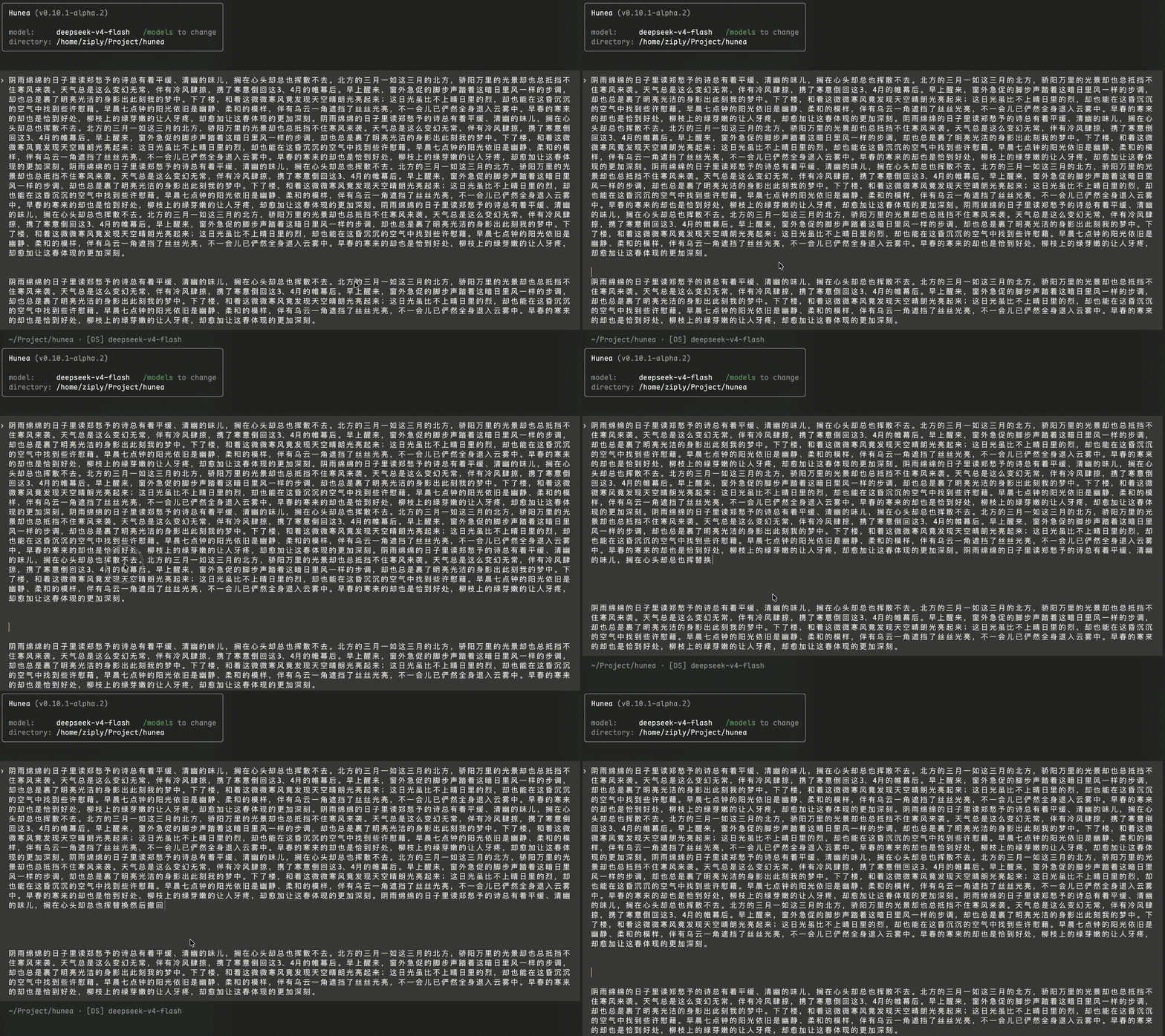
A consistent experience inside the TUI, just like the other software you use every day.
I had already figured out most of the composer's feature design back in early 2026, when I first started experimenting with Go — the same time the preface mentions.
There's no special reason for it; I just genuinely thought it was much nicer to use this way.
I personally write a fair amount of prompts and sometimes notes. I know I could draft them elsewhere and copy-paste, or put them somewhere for the AI to read with its own tools, or open them in an external editor like vim or nvim via a shortcut, save, and move on…
But most of the time I just enjoy writing in the input box itself. And I use newlines a lot, because I like to lay things out (maybe a nicely formatted prompt is easier for the AI to understand too, haha?). So before I know it, I've typed more than ten lines.
And then there are those inputs where you can only move the cursor with arrow keys, or ones with a fixed height that scroll internally — and worst of all, both combined: I've barely written a few dozen lines and the internal scrolling is so laggy it feels like it's about to freeze!!! Some of them don't even let you edit in an external editor!!! I won't name names.
Either way, the experience is terrible.
So when building this part, I optimized it as much as I could, precisely for a better experience. After all, the product I want to build is meant for people to use, so I think it's worth it.
Please bear with me, though — with limited energy, I can't make everything perfect. I hope for your understanding and tolerance. When similar situations come up, I'll keep polishing.
A common example: when I paste thousands of lines of logs, the unbounded design of the input box just dumps all of it on screen. That makes writing a prompt awkward, because there's too much content and scrolling through it is a pain (let's set aside the scenario of writing the logs into a new file).
So in the future I'm considering an optional feature, or rather a progressive design: on the first paste of very long content, it becomes a "collapsed" marker instead, showing how many lines or characters were pasted. That kind of placeholder design is worth borrowing.
If you need to expand it, you could paste the same content at the same spot again, or click, or use some other action to expand it.
Anyway, there's still a lot about this part that can be improved~
Send and newlines
Default semantics:
Yes, that many ways to insert a newline — for compatibility. Pick the one you like.
If you prefer “Enter for newline, chord to send”, set swap_enter_and_send = true: Enter inserts a newline, and Shift + Enter / Ctrl + J send. Alt + Enter / Ctrl + M always insert a newline and are unaffected by the swap.
Before send, a few checks run:
- Draft is empty after trimming whitespace → do not send
- No model selected yet → toast asking you to configure a model
- A conversation turn is already running → toast that a request is in progress
- Selected provider unavailable, or OpenAI-compatible endpoint missing
base_url→ blocked with a toast
Past those checks, the draft becomes a user message in the transcript, the composer clears, and the turn actually starts.
Text editing
Editing keys mostly follow familiar readline / shell habits:
Implementation choices you will feel while typing:
- Undo is grapheme-grouped. Continuous input of the same emoji / combining character does not force half-character undos; opening an external editor with
Ctrl + G, sending, etc. become undo boundaries. - Undo depth is
composer_undo_limit(default 50, range 1..200), process-local only — not written into the session. - Kill buffer keeps only the latest
Ctrl + K/ word-kill result;Ctrl + Yis not a full system clipboard. - If the draft already has a completed selection, ordinary typing, paste, newline, and delete keys replace/delete that selection instead of inserting beside it.
Paste uses bracketed paste: large text arrives as one unit, newlines are normalized (\r\n and lone \r become \n), and “selection present → replace selection” still applies.
With a non-empty draft, Ctrl + C defaults to clearing the draft first (ctrl_c_clears_input = true) rather than starting exit confirm; empty input still uses the exit-confirm path. On clear, plain-text drafts are also recorded into message history for later refill; drafts with image attachments are not forced into that text history.
Mouse
The main UI defaults to app-captured mouse (see Overview), so on the composer you can:
- Click: place the cursor at that character (empty drafts have nothing to hit, so a click will not force a position)
- Drag: create a selection over input text; with a selection, typing / paste / delete use replace-selection semantics
- Middle-click: copy the current screen selection (same selection path as middle-click on the transcript)
The goal is more natural long-prompt editing in place, with less need for external tools.
External editor
When a long draft is painful inside the TUI, Ctrl + G dumps the current content to a temp file, suspends the TUI, opens an external editor, then writes the result back after you save and quit.
- Editor command comes from
external_editor; if unset, Hunea triesVISUAL,EDITOR, then common platform editors - GUI editors (VS Code / Cursor / Zed / Sublime, …) need a “wait until closed” flag, e.g.
["code", "--wait"], otherwise Hunea returns to the TUI as soon as the editor process starts - When the draft becomes multi-line, the status area may briefly show
ctrl+g to edit in …; setshow_external_editor_helper = falseto hide it - External-editor write-back is one undoable whole-draft replace:
Ctrl + Zreturns to the draft from before the editor opened
Prefix completion and attachments
This part will be optimized in the future — there are quite a few trigger symbols, which isn't great for learning and using
The content here will be updated once it's optimized
Several “type a prefix → popup” features live in the composer. They anchor on the token near the cursor rather than a separate command line:
@ files, skills and images
@is the unified mention: the default All mode searches files and skills together,←/→switch between the All / Files / Skills scopes, andTabcycles through them.- Ordinary files: insert a path reference (e.g.
@src/main.rs). The TUI does not expand file contents into the prompt on send; the model should use aread-style tool when it needs the body. That keeps user instructions and file snapshots from mixing (this may evolve, but the current design is intentional). - Images (png / jpeg / gif / webp today): selection becomes an image placeholder tag in the draft and is sent as a structured attachment. The selected model must support multimodal / vision, or the request will error.
- Selecting a skill creates a structured binding: on send the skill body is expanded per the binding and a visible
@skill-namemarker is left in the conversation. - Popup height is
file_picker_popup_height(default 9 rows); width is full terminal width; vertically anchored at@, flipping sides when space is tight.
#
Selection replaces the current token with a readable name and attaches the matching binding on the message. At send time the runtime can tell “user body” from “attached custom prompt”. Skill binding goes through the @ mention (see above).
/ slash menu
The menu only appears when the whole input is in “slash-command query” shape (empty input, type /, then filter). Typing / in the middle of a long draft does not suddenly open the full menu — same rule as the Slash Menu docs.
History refill
Two ways to bring back something you wrote before, with different emphasis:
- Blind refill (Up / Down)
Under suitable boundary conditions (often an empty draft, or the cursor at the very start/end of the draft),↑/↓walk local + persisted message history and drop old text into the input.
In a multi-line draft with the cursor in the middle, up/down prefer moving inside the draft and will not accidentally page history. - Message history panel (
Ctrl + R//resend)
Opens a full-screen / panel-style history list when you want to search, inspect, then choose.
Global history size is capped bymessage_history_limit(default 100).
Status line and styling
A status line can sit under the input (status_line / status_line_2) for branch, directory, current model, throughput, time-to-first-token, and so on. Unconfigured — or when nothing can resolve — the status line hides instead of leaving a blank row.
user_input_style only changes how in-progress input and sent user messages look; it does not change send, completion, or mouse semantics.
Config cheatsheet
All under [tui]; restart to apply:
Overall, Hunea’s composer aims at “comfortable long input in a terminal” — unbounded growth, clickable/selectable mouse, escape hatch to an external editor, history refill, in-place @ / # / / completion — without secretly stuffing file contents into the prompt.